Quick Answer
2026 baseline: 16GB RAM handles gaming and general computing; 32GB suits content creators, software developers, and LLM inference; 64GB+ required for professional video editing, 3D rendering, and simultaneous workloads. Your actual need depends on application memory footprint, multitasking patterns, and OS overhead, not marketing claims.

Pros
- Rated for speeds up to 6400MT/s with AMD EXPO profile
- Tight CL30-39-39-102 latency timings at 1.40V
- Designed and validated for AMD X870, X670, and B650 platforms
Cons
- Requires manual BIOS overclocking to exceed base JEDEC speeds
- Peak speed depends heavily on motherboard and CPU capability

Pros
- 32GB capacity handles demanding games, multitasking, and creative workloads
- 6000MT/s speed with CL30 latency is well suited for AMD Ryzen performance
- AMD EXPO profiles make enabling rated speeds simple in BIOS
- FURY Beast series is a well known Kingston memory line for desktop builds
Cons
- DDR5 memory requires a DDR5 compatible motherboard, so it will not work with older DDR4 systems
- EXPO is designed for AMD platforms, so Intel users may need to rely on XMP or manual settings
The Kingston FURY Beast 32GB 6000MT/s DDR5 CL30 is best for AMD builders who want high capacity memory with easy overclocking through EXPO profiles. The 6000MT/s speed and CL30 latency pair well with modern Ryzen systems for responsive gaming and multitasking. The main trade-off is that this is DDR5 only, so it requires a compatible DDR5 motherboard and will not fit older DDR4 systems.
Capacity: 32GB
Type: DDR5
Speed: 6000MT/s
Latency: CL30
Overclocking: AMD EXPO
Pros
- Very high 7200MHz DDR5 speed rating for a performance-focused desktop build.
- 32GB capacity in a 2x16GB configuration supports dual-channel operation.
- XMP 3.0 support makes performance tuning more convenient on compatible boards.
- Power management ICs are included for stable and efficient power usage.
Cons
- Requires a compatible 600 or 700 series chipset platform to fully benefit from its rated performance.
- High-speed DDR5 kits like this can be more expensive than lower-frequency alternatives.
- RGB lighting may add value for some users but is unnecessary for buyers focused only on raw performance.
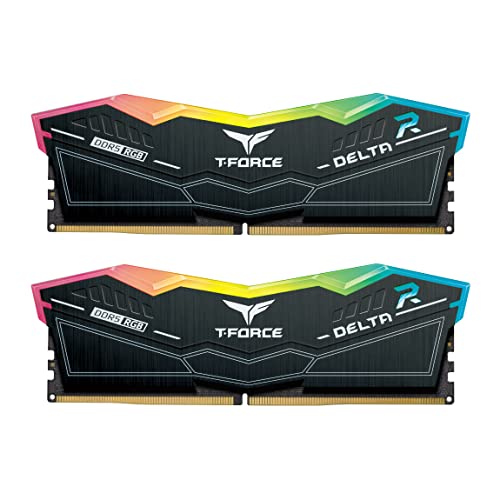
Overview & Design: The TEAMGROUP T-Force Delta RGB DDR5 32GB kit is a desktop memory upgrade built around a 2x16GB layout, 7200MHz speed, and CL34 timings. It is designed for users who want a performance-oriented RAM kit with an RGB look for modern gaming or creator PCs.
Performance & Key Features: Its high frequency, XMP 3.0 readiness, and A-DIE design make it a strong fit for demanding workloads where memory bandwidth matters. The included power management ICs are intended to support stable and efficient power usage, and the kit is aimed at 600 and 700 series chipset systems that can take advantage of fast DDR5 memory.
Drawbacks & Considerations: This is a premium-spec kit, so it is best suited to users with a compatible motherboard and CPU platform. Buyers should also remember that very fast DDR5 can depend heavily on system compatibility, and RGB lighting adds visual appeal rather than direct performance.
Verdict: The T-Force Delta RGB DDR5 32GB 7200MHz CL34 kit makes the most sense for enthusiasts, gamers, and creators building a compatible high-performance desktop. If you want fast DDR5 memory with a polished design and easy profile support, it is a strong option to consider.

Pros
- Fast 6000MHz rated speed with tight CL30-36-36-76 timings
- Ten individually addressable RGB LEDs per module
- Supports AMD EXPO and Intel XMP profiles
- Onboard voltage regulation manageable via CORSAIR iCUE
Cons
- Advertised 6000MHz speed requires manual BIOS overclocking
- Higher 1.77-inch profile may affect compact cooler clearances

Pros
- High 6000MT/s rated speed for a performance-focused DDR5 kit.
- Low CL30 timing is attractive for gamers and PC enthusiasts.
- Works with both Intel XMP 3.0 and AMD EXPO platforms.
- Includes an aluminum heatsink for improved thermal management.
- Backed by a lifetime warranty for long-term ownership confidence.
Cons
- Advertised speeds require compatible motherboard, CPU, and BIOS profile support.
- This is unbuffered UDIMM desktop memory, so it is not intended for laptops or server systems.
- Full performance depends on system configuration, so plug-and-play speeds may run at JEDEC defaults until profiles are enabled.
Overview & Design: The SP Silicon Power Value Gaming DDR5 32GB kit is a desktop memory upgrade made for users who want fast DDR5 performance in a standard 2x16GB UDIMM layout. The aluminum heatsink gives it a practical, heat-conscious design that fits a performance PC build.
Performance & Key Features: Rated at 6000MT/s with CL30 timings and 1.35V operation, this kit is aimed at responsive gaming and demanding multitasking. Support for Intel XMP 3.0 and AMD EXPO makes it easier to run the advertised profile on compatible systems, while the integrated PMIC helps support more stable power delivery.
- 32GB total capacity in a dual-channel 2x16GB kit
- 6000MT/s rated speed with CL30 timing
- XMP 3.0 and AMD EXPO support
- Aluminum heatsink for thermal management
- Lifetime warranty coverage
Drawbacks & Considerations: The main limitation is compatibility, since the advertised speed depends on the motherboard, CPU, and BIOS profile support. As with most high-speed DDR5 kits, plug-and-play behavior may default to JEDEC standards until XMP or EXPO is enabled.
Verdict: This kit makes the most sense for desktop gamers and PC builders who want a fast 32GB DDR5 upgrade with easy profile-based tuning. If your platform supports 6000MT/s DDR5 and you want a balanced mix of speed, cooling, and warranty coverage, it is a strong option to consider.
Understanding RAM’s Role in 2026 Computing Architecture
Random Access Memory (RAM) is your system’s temporary workspace, a high-speed buffer between your CPU and storage devices. Unlike storage capacity, RAM’s primary value lies in its latency and throughput characteristics. The JEDEC Memory Standards Specification defines DDR5 operating parameters, which have become the 2026 standard for consumer systems. Your RAM requirement isn’t arbitrary; it’s determined by three measurable factors: application peak memory demand, concurrent process overhead, and operating system kernel reservation.
DDR5 modules now dominate the market, offering 4800 to 6400 MHz native speeds with reduced voltage (1.2V vs. 1.35V for DDR4). However, raw speed matters far less than capacity matching your workload. A 16GB DDR5 system running modern applications will outperform a 32GB DDR4 system in pure throughput, but if your applications collectively require 20GB of working memory, neither configuration delivers smooth performance, you’ll encounter page-file thrashing and substantial latency spikes.
How to Check How Much RAM You Have
Windows: Built-in System Information Tools
Press Windows + Pause/Break to open System Properties directly, or navigate to Settings > System > About and scroll to “Installed RAM.” Task Manager provides real-time utilization: press Ctrl + Shift + Esc, select the Performance tab, then click Memory. This displays total capacity, in-use amount, available memory, and commit size, the last metric indicating how much memory your OS has allocated to the page file when physical RAM fills. For additional operational safety benchmarks, see our published testing notes on set pagefile size windows 11.
For granular detail, open Command Prompt as Administrator and execute wmic logicalmemory get totalphysicalmemory. This outputs your total RAM in bytes; divide by 1,073,741,824 for GB-denominated results. This method bypasses any display rounding Windows might apply.
macOS: Activity Monitor and Terminal Methods
Open Activity Monitor (Applications > Utilities), then select the Memory tab. The bottom panel displays total physical memory in GB. Terminal users can execute sysctl hw.memsize | awk ‘{print $2/1024/1024/1024}’ for a precise gigabyte reading. For real-time consumption tracking, the Memory tab in Activity Monitor color-codes usage: green (available), yellow (app memory), red (compressed), and blue (cached files). To compare alternative configurations, check our hands-on review of check ram die type.
Linux: Comprehensive Memory Diagnostics
Execute free -h to display total, used, free, and available memory in human-readable format. For deeper analysis, run cat /proc/meminfo to inspect kernel-level memory accounting, including MemTotal, MemAvailable, Buffers, Cached, and SwapTotal. The distinction between “used” and “available” is critical on Linux: available memory includes cached pages that can be instantly evicted if an application requires space, while used memory counts any allocation the kernel has made.
RAM Requirements by Workload Category
Gaming: The 16GB Threshold (with Caveats)
In 2026, most AAA gaming titles, including Black Myth: Wukong, modern Call of Duty iterations, and Unreal Engine 5 titles, allocate 10, 14GB of VRAM plus system RAM for asset streaming, physics simulation, and audio processing. A 16GB system with DDR5 speeds performs adequately at 1440p high/ultra settings with ray tracing enabled, provided your GPU possesses sufficient VRAM (8GB minimum; 12GB recommended for future compatibility). Users looking for related component recommendations can explore our sodimm in desktop pc breakdown.
Competitive esports titles (Counter-Strike 2, Valorant, Overwatch 2) consume 6 to 8GB total, allowing headroom for Discord, OBS streaming, and background services. However, modern gaming increasingly emphasizes CPU-intensive physics and AI simulation. When comparing system configurations like the AMD Ryzen 5 9600X vs Intel Core Ultra 5 245K, RAM bandwidth becomes a secondary factor, both processors perform identically with 32GB DDR5, but the 9600X’s 7-core configuration suits 1440p gaming better than the Ultra 5’s efficiency cores when RAM is constrained.
32GB remains overkill for pure gaming unless you stream simultaneously or run production software in the background. However, 32GB provides future-proofing for next-generation titles utilizing real-time ray-traced global illumination and AI-powered NPCs.
Content Creation: Editing, Rendering, and Composition
4K video editing in DaVinci Resolve, Premiere Pro, or Final Cut Pro demands memory-intensive proxy workflows. A 1-hour 4K 24fps project file consumes approximately 8, 12GB when loaded with effects, color grading, and multiple timeline tracks. The professional standard remains 32GB minimum, 64GB recommended for simultaneous timeline playback, effects preview, and real-time rendering without cache invalidation. Before finalizing equipment decisions, refer to our comprehensive running out of ram pagefile comparison.
Adobe After Effects follows a similar profile: motion graphics projects with 50+ layers, 3D camera tracking, and particle simulations easily exceed 16GB. Autodesk Maya and 3ds Max for 3D character modeling and cinematic rendering require 64GB or more when working with high-polygon meshes (10M+ vertices), volumetric lighting simulations, and Arnold/V-Ray path-traced rendering farms.
Photo editing workflows are deceptively memory-light, Adobe Lightroom and Capture One process images at 2 to 4GB per operation, but batch processing 500+ raw images concurrently demands 48GB minimum. Photographers often underestimate collab demands; a single Lightroom catalog with smart collections, virtual copies, and AI masking operations can reserve 6 to 8GB independent of image count.
Software Development & LLM Inference: The 32GB Frontier
Large Language Model (LLM) inference has become a critical metric for professional development environments. With 32GB system RAM, you can run quantized open-source models effectively: 7B parameter models quantized to 4-bit consume approximately 3.5 to 4.5GB, permitting simultaneous IDE operation, Docker containers, and 2 to 3 additional browser tabs. 13B quantized models require 7 to 9GB, leaving 20GB for development overhead and system services.
Regarding which LLMs and quants are possible with 32GB RAM, the practical landscape includes Meta’s Llama 2 (7B-Q4, 13B-Q4), Mistral 7B variants, and Qwen models up to 14B quantization without performance compromise. Quantization techniques, primarily INT8 and INT4 precision reduction, sacrifice minimal accuracy (typically 1 to 3% on benchmarks) while reducing memory footprint by 75%. Running a 32B-parameter model at 4-bit quantization requires approximately 8 to 10GB, bringing it within 32GB reach alongside development tools. However, 70B models, even at aggressive 3-bit quantization, demand 18 to 22GB alone, consuming 70% of available RAM with minimal system headroom.
Containerized development environments (Docker, Kubernetes) with microservices architectures multiply memory demands non-linearly. A Dockerized Python ML stack with PyTorch, TensorFlow, and Jupyter notebooks reserves 4 to 6GB baseline; adding three service containers escalates this to 14 to 18GB before your actual model loads. Professional development teams standardize on 64GB minimum, permitting parallel model experimentation and production deployment simulation.
Memory Speed, Latency, and Practical Performance Impact
DDR5 vs. DDR4 Throughput Characteristics
DDR5 operates at native speeds 25 to 35% faster than DDR4 equivalents (DDR5-5600 vs. DDR4-3600), but real-world performance variance depends on workload memory access patterns. Sequential workloads, video encoding, large-matrix mathematics, game asset streaming, benefit from DDR5 bandwidth, yielding 8 to 15% performance gains over DDR4. Random-access workloads (database queries, pointer-chasing algorithms) show minimal improvement; latency dominates, and both DDR4 and DDR5 exhibit comparable cycle times (approximately 13 to 15ns).
When evaluating motherboard and RAM pairing, such as the ASUS ROG Maximus Z890 Hero vs MSI MEG Z890 ACE, both support DDR5 across the full speed spectrum. The ROG Maximus emphasizes power delivery for DDR5 overclocking (rated for 8000+ MHz stability), while the MEG Z890 ACE prioritizes stability margins with conservative profile defaults. For practical 2026 configurations, neither advantage translates to user-perceivable gains at standard DDR5-5600 operation; choose based on additional features (connectivity, audio chipset, power phases for CPU overclocking) rather than memory-centric differentiation.
Capacity vs. Speed Trade-offs
A common misconception: a 32GB DDR4-3600 system outperforms a 16GB DDR5-6400 system. This is false for most workloads. The 16GB system will page to disk under memory pressure (destroying performance), while the 32GB system maintains consistent behavior. For applications that remain within 16GB working memory, DDR5-6400 demonstrates 5 to 12% performance uplift over DDR4-3600. However, capacity always trumps speed; exceeding available RAM triggers virtual memory, reducing effective throughput by 50 to 100x compared to physical RAM access.
GPU VRAM Interactions and CPU-GPU Memory Bandwidth
System RAM and GPU VRAM serve distinct purposes, but they interact through PCIe bandwidth. Consumer graphics cards (RTX 5090, Radeon RX 9060 XT 8GB vs 16GB comparison) transfer textures, shaders, and results through PCIe 5.0 (128 GB/s peak). A bottleneck occurs when GPU VRAM fills and assets must stream from system RAM, this manifests as stuttering or frame-time inconsistency, not absolute FPS loss.
In CUDA-accelerated workflows (machine learning, scientific computing), system RAM acts as a staging buffer for GPU operations. PyTorch data loaders pre-fetch batches into system RAM before transferring to VRAM. Insufficient system RAM forces dataset reloading from storage on each epoch, multiplying training time by 2 to 5x. Professional compute workflows typically reserve 2 to 3GB of system RAM per GPU, with 8GB minimum baseline; a dual-GPU system running RTX 5880 cards demands at least 32GB system RAM to avoid I/O bottlenecks.
Real-World Memory Consumption Diagnostics
Identifying Memory Pressure and Page-File Activity
| Symptom | Root Cause | Diagnostic Command/Tool | Typical Threshold |
|---|---|---|---|
| Stuttering during gaming or playback | Physical RAM exceeded; OS writes to page file | Task Manager > Performance > Memory (check “Committed” vs. total) | Committed > 90% capacity |
| Application crashes or “out of memory” errors | Allocated memory exceeds physical + page-file limits | Windows Event Viewer > Windows Logs > Application (search “MemoryLow”) | Available < 500MB consistently |
| Disk activity spike with no active downloads | Page-file swap operations; storage I/O replaces RAM access | Resource Monitor > Disk > Disk Activity (filter by pagefile.sys) | >50 MB/s page-file I/O sustained |
| Thermal throttling (CPU/GPU temps spike 10 to 15°C) | Memory bandwidth saturation forces CPU retries; inefficient thermal behavior | HWiNFO64 > Memory Bus Utilization; CPU Clock Modulation events | Memory bus > 95% utilization for >5 seconds |
| Inconsistent frame times (high 99th percentile latency) | Cache misses forcing main-memory stalls; insufficient prefetch buffers | FCAT latency analysis; FrameView (NVIDIA) or GPUView (AMD) | 99th percentile > 16ms (at 60 FPS baseline) |
| Gradual performance degradation (not immediate crash) | Memory leak in application; unreleased allocations accumulate | Task Manager > Processes; sort by Memory usage; monitor over 30 minutes | Single process grows >500MB/hour without user action |
Profiling Memory Usage in Development Environments
For developers assessing whether your system can run multiple instances of compilation, testing, and LLM inference simultaneously, use platform-specific profilers. Visual Studio includes built-in Memory Profiler; run your application under profiling and observe heap allocation patterns. For Python workflows, install memory_profiler and decorate functions with @profile to log line-by-line memory consumption. This identifies single functions consuming 2 to 4GB unexpectedly, common in NumPy operations on large matrices where intermediate arrays consume more memory than final results.
Go-based microservices and compiled languages show memory efficiency advantages; a Docker container running a Golang REST API typically consumes 30 to 60MB baseline, whereas an equivalent Python FastAPI service requires 80 to 150MB. At scale (50+ containers), this 2 to 3x variance compounds, forcing cluster operators to provision 64GB minimum where 32GB might theoretically suffice.
Future-Proofing: 2026 to 2028 Projection
Emerging software trends point toward increased per-application baseline allocations. Unreal Engine 5.3+ projects routinely load 12 to 16GB into memory during development iteration. NVIDIA CUDA 12.x toolchains reserve larger kernel memory spaces. Web browsers, specifically Chromium-based versions with privacy-focused features like isolated process-per-site, demonstrate 2 to 3GB per 10 open tabs with full tracking protection enabled.
AI/ML inference local execution remains fringe in 2026, but adoption acceleration suggests mainstream adoption by 2028. If consumer-grade LLM inference becomes standard (integrated into operating systems, creative tools, or search functions), 48GB or 64GB systems will represent the new “safe” baseline rather than premium configurations. Check benchmark data across our desktop CPU benchmarks & reviews and graphics card tests & GPU guides to observe memory capacity trends in recommended configurations year-over-year.
Final Diagnostic Verdict & Maintenance Checklist
Determine your actual need: For 12 months of comfortable computing without forced upgrades, model peak memory consumption across your three most-demanding simultaneous applications. If combined allocation reaches 24GB, purchase 32GB. If it approaches 48GB (4K video editing with background ML workloads), invest in 64GB. Gaming-only and general-purpose users should allocate minimum 16GB DDR5 to avoid future page-file penalties within 18 to 24 months.
Purchase guidelines: Select DDR5 modules from established manufacturers (Kingston, G.Skill, Corsair, Crucial). Verify motherboard QVL (Qualified Vendor List) compatibility; out-of-spec RAM functions but may require BIOS tuning or exhibit stability issues under sustained load. Aim for 5600 to 6000 MHz native speeds; binned 6400+ MHz modules offer diminishing returns and increase cost 15 to 25% for 2 to 4% performance uplift.
Installation and verification checklist:
- Power off system completely; press Power button 10 times post-shutdown to discharge residual capacitance.
- Insert RAM modules at 45-degree angle; press down firmly until side latches snap into place with audible click.
- Power on and enter BIOS (typically Del, F2, or F12 during boot, check motherboard manual).
- Verify memory capacity displays correctly (should show total installed capacity, not partial detection).
- Run MemTest86 for 8 passes (approximately 2 hours) to identify defective modules before OS installation.
- After OS install, verify using system information tools (documented in earlier sections) to confirm accessible capacity equals installed capacity.
- Monitor temperatures: RAM rarely exceeds 45°C under normal workloads; sustained >50°C indicates insufficient case airflow or defective thermal interface material.
Performance validation: Establish baseline consumption metrics using Task Manager or Activity Monitor. Re-check memory pressure quarterly; if committed memory consistently exceeds 85% capacity, immediate upgrade is warranted. Proactive upgrades prevent cascading system failures where memory exhaustion triggers cascade lockups requiring force-restart.
RAM sizing remains among the most cost-effective system investments, a $60 to 120 upgrade delivering 16GBu219232GB capacity often yields 25 to 40% performance improvement when memory was the bottleneck. Conversely, upgrading to 64GB when your workloads plateau at 40GB usage wastes capital. Profile your actual usage, document peak allocations, and upgrade conservatively with 20% headroom. Your future self, running resource-heavier software versions, will appreciate the margin.
Further Reading on Memory Capacity
How much memory you need comes down to the programs you run side by side. Terms such as capacity, speed, and module type are easier to sort out with a general reference handy, and American National Standards Institute (ANSI) is one place to start.