Quick Answer
In Windows 11, check RAM speed in Task Manager under the Performance tab, then Memory. A third-party system information tool shows more detail, and the Command Prompt command wmic memorychip get speed also works. Your actual speed can differ from the rated speed because of BIOS clock settings.
Pros
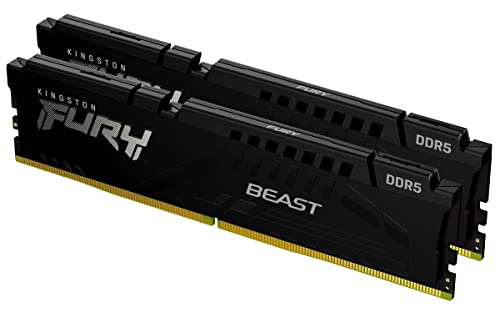
- 64GB total capacity as a 2x32GB kit
- Rated 5600MT/s speed with CL36 timing
- Supports both AMD EXPO and Intel XMP 3.0 profiles
- Low-profile heat spreader design per the listing
- Black finish with a compact 0.26-inch profile
Cons
- Overclocking stability benefits are manufacturer-stated only
- Listing gives limited detail beyond speed, capacity, and profiles

Pros
- High 64GB capacity with tight CL30 latency
- Fast 6400MHz rated operating frequency
- Intel XMP 3.0 ready for one-click overclocking
- On-die ECC and dedicated PMIC cooling
Cons
- Optimized specifically for Intel 600/700 series chipsets
- Stable 6400MHz speed relies heavily on CPU IMC quality

Pros
- Large 2x32GB configuration is well suited to heavy multitasking and memory-hungry applications.
- Broad compatibility with Intel Core Ultra Series 2, 13th and 14th Gen desktop CPUs, and AMD Ryzen 9000 series and above.
- Dual XMP 3.0 and EXPO support makes configuration easier across different motherboard ecosystems.
- White heat spreader design is attractive for builders who want a coordinated, premium-looking system.
Cons
- Motherboard compatibility still needs to be verified before purchase, especially for overclocking support.
- CL40 latency is solid, but buyers chasing the lowest possible timings may find tighter kits elsewhere.
- This is a desktop memory kit, so it is not suitable for laptop upgrades.
Overview: The Crucial Pro DDR5 CP2K32G60C40U5W is a 64GB desktop memory kit built from two 32GB modules. Its white aluminum heat spreader gives it a clean, modern look while also serving as a practical thermal solution for desktop builds.
Performance: Rated at 6000MHz with CL40 timing, this kit is aimed at stable overclocking and strong everyday responsiveness. It also supports both Intel XMP 3.0 and AMD EXPO, which makes setup more flexible for compatible Intel and AMD systems.
Considerations: Buyers should verify motherboard compatibility before purchase, since support can vary by platform. While CL40 is a capable spec, users who prioritize the absolute lowest latency may want to compare other DDR5 options.
Verdict: This Crucial memory kit is a strong fit for desktop users who want high capacity, broad platform support, and a clean white design. It is best suited to gamers, multitaskers, and creators who value reliable DDR5 performance over extreme tuning.
Understanding RAM Speed Fundamentals in Windows 11
Random Access Memory speed, measured in megahertz (MHz), represents the number of data transactions your RAM completes per second. Windows 11 abstracts many hardware-level details, but multiple diagnostic pathways exist to extract precise memory clock frequencies. The confusion arises because rated speed (manufacturer XMP/DOCP profile) differs from actual operating speed (what your current BIOS configured). Most users conflate these two measurements, leading to incorrect conclusions about system performance.
The relationship between MHz and real-world performance extends beyond raw frequency. When evaluating system RAM, you’ll encounter specifications like DDR5-6400, which means the memory transfers data twice per clock cycle at 6400 MHz effective rate. This specification matters when cross-referencing our desktop CPU benchmarks & reviews because CPU-to-RAM latency directly impacts instruction execution timelines, particularly in gaming and content creation workloads.
Method 1: Task Manager Performance Tab (Native Windows 11)
Accessing Memory Speed Through Task Manager
The simplest path requires zero third-party software. Open Task Manager by pressing Ctrl+Shift+Esc or right-clicking the taskbar and selecting Task Manager. Navigate to the Performance tab, then click Memory in the left sidebar. For additional operational safety benchmarks, see our published testing notes on set pagefile size windows 11.
In the upper-right portion of the window, you’ll observe your total installed RAM capacity and current utilization percentage. Directly beneath this summary sits the Speed field, displaying your RAM’s operating frequency in MHz. Windows 11 queries the SPD (Serial Presence Detect) chip onboard each DIMM to populate this value, ensuring accuracy regardless of BIOS overclocking.
Interpreting Task Manager Memory Data
Task Manager displays four critical memory parameters beyond speed: To compare alternative configurations, check our hands-on review of check ram die type.
- Slots used: Number of populated DIMM slots (2, 4, or 8 for consumer platforms)
- Form factor: Whether your RAM is SODIMM (laptop) or UDIMM (desktop)
- Hardware reserved: Memory allocated to firmware, GPU, and system services, typically 0.5 to 2 GB
- Available: RAM immediately ready for application allocation
If you observe your speed as 4800 MHz but your RAM box claims DDR5-6000, your BIOS hasn’t activated the manufacturer-recommended profile. This discrepancy suggests either a BIOS reset to defaults or manual clock adjustment opportunities for performance tuning.
Method 2: Command Prompt & PowerShell Diagnostics
Using WMI (Windows Management Instrumentation) Command
For advanced users requiring scriptable output, Command Prompt provides direct hardware interrogation. Open Command Prompt as Administrator (Win+R, type cmd, press Ctrl+Shift+Enter) and execute: Users looking for related component recommendations can explore our sodimm in desktop pc breakdown.
wmic memorychip get speed,manufacturer,capacity,clockspeed
This returns tabular output showing each DIMM’s speed (MHz), manufacturer identifier, total capacity (bytes), and configured clockspeed. The “speed” field reflects JEDEC standard frequency; “clockspeed” shows actual BIOS configuration. Discrepancies indicate XMP/DOCP profile activation status. Before finalizing equipment decisions, refer to our comprehensive running out of ram pagefile comparison.
PowerShell Deep-Dive Memory Query
PowerShell (opened as Administrator) enables more granular investigation through this command:
Get-WmiObject Win32_PhysicalMemory | Select-Object -Property Manufacturer,Model,Speed,Capacity For broader ecosystem context, read through our operational guide on ram clearance air cooler.
This cmdlet returns formatted output immediately accessible for external reporting or system documentation. Enterprise administrators often integrate this into automated inventory systems, though consumer-grade troubleshooting also benefits from programmatic access.
Verifying Consistency Across Slots
Critical diagnostic practice involves confirming all installed RAM operates at identical speeds. If your query returns mixed frequencies (e.g., one DIMM at 4800 MHz, another at 3200 MHz), your system operates in single-channel mode, a severe performance penalty. This scenario typically indicates mismatched DIMM specs, incompatible XMP profiles, or physical seating issues.
Method 3: CPU-Z Third-Party Analysis (Recommended Precision)
Installation and Memory Tab Navigation
While Windows 11’s native tools provide adequate baseline information, CPU-Z remains the de facto standard for hardware technicians and enthusiasts requiring maximum detail. Download the portable executable from CPUID (no installation required) and launch it. The Memory tab displays:
- DDR generation (DDR4, DDR5, LRDIMM, RDIMM)
- Memory size and channel configuration (single, dual, or quad-channel)
- NAS (non-addressable space) percentage
- DRAM frequency in MHz (actual BUS speed)
- Calculated effective frequency (accounting for DDR multiplier)
The distinction between DRAM frequency and effective frequency proves essential. A 3600 MHz DRAM clock yields 7200 MHz effective frequency because DDR (Dual Data Rate) architecture executes two transfers per clock cycle. CPU-Z automatically calculates this relationship.
SPD Tab Cross-Reference for Specification Verification
CPU-Z’s SPD (Serial Presence Detect) tab reveals each DIMM’s programmed JEDEC profiles and vendor specifications. This tab displays:
| SPD Parameter | Explanation | Impact on Performance |
|---|---|---|
| JEDEC Profile | Standard frequency/timing defined by JEDEC Memory Standards Specification | Conservative; guaranteed stability at rated voltage |
| XMP/DOCP Profile | Manufacturer overclocking preset (Intel XMP 3.0 or AMD DOCP) | Higher frequency/lower latency; requires BIOS enablement |
| Max Speed | Absolute maximum rated frequency at standard voltage | Manufacturer warranty boundary |
| Timing (CAS Latency) | Delay (cycles) from address request to data availability | Lower = faster response; critical for CPU-intensive tasks |
| Rated Voltage | Safe operating voltage (1.35V DDR4, 1.40V DDR5) | Higher voltage enables overclocking but reduces lifespan |
If your actual operating speed (Task Manager) significantly underperforms your max speed (CPU-Z SPD), enter BIOS setup and enable XMP or DOCP manually. This one-click optimization frequently improves system responsiveness by 8 to 12% in synthetic memory benchmarks.
RAM Speed Implications for Modern Hardware Pairings
Correlation with Processor Selection
RAM speed directly influences CPU performance metrics, particularly with modern high-core-count architectures. When evaluating system upgrades, consider pairing your RAM specifications against your processor’s memory controller specifications. For instance, our comparative analysis of the AMD Ryzen 5 9600X vs Intel Core Ultra 5 245K reveals that the Ryzen platform supports DDR5 frequencies up to 8533 MHz, while Intel’s newer platform optimizes around 8400 MHz. Mismatches between your installed RAM speed and CPU-recommended specifications result in suboptimal performance negotiation between memory controller and DIMM modules.
Motherboard Support and Overclocking Limits
Your motherboard’s BIOS implementation ultimately determines achievable RAM speeds. Premium enthusiast platforms like the ASUS ROG Maximus Z890 Hero vs MSI MEG Z890 ACE feature enhanced power delivery for memory subsystems, enabling stable operation at theoretical maximum frequencies. Budget-tier boards often cap performance at JEDEC standards due to VRM (voltage regulator module) limitations. Your CPU-Z SPD tab reveals maximum safe frequency; your motherboard manual specifies actual achievable ceiling.
GPU Memory Bandwidth Considerations
System RAM speed affects discrete GPU performance indirectly through PCIe bandwidth and system memory access patterns during streaming workloads. When evaluating graphics performance upgrades, consult comparisons like our Radeon RX 9060 XT 8GB vs 16GB comparison to understand VRAM dynamics; system RAM becomes a bottleneck only when VRAM exhaustion forces texture streaming from system memory, a rare modern scenario with properly-configured graphics settings.
DDR4 vs. DDR5 Speed Characteristics and Detection
Standard Operating Frequencies by Generation
DDR4 consumer platforms standardized around 3200 MHz (JEDEC baseline) with enthusiast-grade modules reaching 3600 to 4000 MHz. Task Manager or CPU-Z immediately identifies your generation; look for “DDR4” or “DDR5” nomenclature in the memory type field. DDR5 launched with 4800 MHz baseline (JEDEC), with current consumer modules spanning 5600 to 6400 MHz and high-end variants exceeding 8000 MHz.
Speed alone doesn’t determine DDR4-to-DDR5 upgrade worthiness. A DDR5-5600 module operating at 5600 MHz delivers roughly 10 to 15% performance improvement over DDR4-3600 in mixed workloads, but the calculus shifts dramatically when considering latency. A DDR5 module rated as “6000 CAS30” may perform identically to “5600 CAS28” depending on your specific CPU architecture and workload pattern. Consult processor-specific memory benchmarking data on our desktop CPU benchmarks & reviews section before committing to generational transitions.
Latency-to-Bandwidth Tradeoffs
Modern memory controllers incorporate automatic timing relaxation as frequency increases, higher speeds necessitate wider timing windows for signal stabilization. This architectural reality means DDR5-6400 CAS36 sometimes underperforms DDR5-5600 CAS30 in applications sensitive to first-access latency (gaming, real-time audio production). Always cross-reference both parameters when verifying your RAM’s practical speed classification.
Troubleshooting Speed Discrepancies and Performance Validation
Diagnosing Mismatched Multi-DIMM Installations
When Task Manager or CPU-Z reports different speeds across multiple RAM slots, immediate investigation becomes mandatory. Symptoms include system crashes during intensive workloads, spontaneous reboots, or memory corruption errors detected by Windows Memory Diagnostic. Common causes include:
- Different DIMM manufacturers or revisions installed simultaneously (BIOS defaults to slowest specification)
- Partially-seated DIMMs causing intermittent contact resistance
- BIOS CMOS battery depletion resetting clock settings to conservative defaults
- Corrupted XMP/DOCP profile preventing higher-speed profile loading
Resolution involves either removing mixed DIMMs (keeping only matching pairs) or manually configuring BIOS to identical conservative timings across all slots. Most modern boards automatically adjust for mismatched capacity; speed uniformity requires manual intervention or DIMM replacement.
Validating Speed Under Load with Diagnostic Tools
Idle RAM speed queries may misrepresent actual operating behavior under sustained workloads. Thermal throttling, automatic frequency reduction when memory modules exceed 80 to 85°C, silently degrades performance in inadequately cooled systems. Enable DOCP/XMP and run a memory stress test (MemTest86+ or Prime95) for minimum 30 minutes while monitoring temperatures via CPU-Z or HWInfo. Temperature stability under load confirms that your reported speed represents genuine sustained performance, not optimistic SPD ratings.
BIOS Configuration for Maximum Stable Speed
If your Task Manager speed significantly underperforms rated specifications:
- Restart your system and press Delete (or F2, F12 depending on motherboard) during boot to enter BIOS Setup
- Navigate to the Overclocking or Advanced settings section (exact naming varies by manufacturer)
- Locate “XMP” (Intel) or “DOCP” (AMD) option and change from “Disabled” to “Profile 1” or “Enabled”
- Save changes and exit BIOS (typically F10 or using the Save & Exit menu)
- Allow Windows to boot fully, then verify new speed in Task Manager
If your system fails to boot after enabling XMP/DOCP, hold the Clear CMOS jumper for 10 seconds (motherboard manual indicates location) to reset BIOS to defaults, then retry with a more conservative profile option if available.
Advanced Speed Monitoring and Real-Time Performance Metrics
Continuous Monitoring with HWInfo and MSI Afterburner
Beyond static queries, real-time monitoring applications reveal dynamic speed fluctuations during gaming or rendering workloads. HWInfo (free, detailed hardware intelligence) and MSI Afterburner (GPU-focused but includes system RAM monitoring) display memory clock speed, bandwidth utilization percentage, and thermal status simultaneously. Gaming scenarios frequently trigger minor clock throttling (100 to 200 MHz reductions) lasting milliseconds, undetectable through manual checks but visible in continuous logging.
Bandwidth vs. Frequency Distinction
Theoretical memory bandwidth (GB/s) derives from frequency and channel configuration using this formula:
Bandwidth = (Speed in MHz × 2 × 64 bits ÷ 8) × Channel Count ÷ 1000
For example, DDR5-6000 dual-channel: (6000 × 2 × 64 ÷ 8) × 2 ÷ 1000 = 192 GB/s theoretical maximum. Real-world access patterns rarely achieve this ceiling; empirical testing (via graphics card tests & GPU guides that include memory benchmarking) reveals typical utilization between 60 to 85% of theoretical bandwidth for consumer workloads.
Final Diagnostic Verdict & Maintenance Checklist
Checking RAM speed in Windows 11 involves multiple verification methods, each serving distinct diagnostic purposes. Task Manager provides quick baseline confirmation; CPU-Z offers comprehensive technical specification review; Command Prompt enables scriptable automation for IT environments. The critical realization involves distinguishing between rated speed (manufacturer specification), actual speed (current BIOS configuration), and sustainable speed (real-world performance under thermal load).
Implement this maintenance checklist quarterly to ensure optimal RAM performance and early detection of stability degradation:
- Speed verification: Open Task Manager monthly to confirm operating frequency matches expected specification
- Temperature monitoring: Confirm RAM modules remain below 75°C during sustained workloads; thermal pads may require replacement if exceeding 80°C consistently
- Multi-DIMM uniformity: Use CPU-Z SPD tab to verify all installed modules report identical speeds; mismatches indicate configuration errors
- XMP/DOCP enablement status: Verify BIOS configuration reflects highest stable profile supported by your CPU and motherboard; conservative defaults leave performance on the table
- Windows Memory Diagnostic: Run annually (Windows Search → “Memory Diagnostic” → Restart Now) to detect latent hardware degradation
- BIOS currency: Check motherboard manufacturer website quarterly for memory compatibility updates; newer BIOS versions frequently enable higher frequency support for RAM modules
Remember that RAM speed represents only one performance variable. The interaction between speed, latency (CAS), voltage stability, and CPU architecture determines practical performance impact. For comprehensive system evaluation, cross-reference your memory specifications against your processor’s optimization parameters using authority resources like JEDEC Memory Standards Specification, which publicly documents all standardized frequency/timing combinations and power delivery requirements. This foundational knowledge transforms vague speed numbers into actionable upgrade decisions.
Reference for Windows Memory Checks
Windows shows memory speed in more than one place, and those figures may not match what is printed on the box. Keep the units straight as you read, and use American National Standards Institute (ANSI) as a reference for computing terms when a label is unclear.