Quick Answer: How to Fix Robot Vacuum Not Connecting to Wifi
For general background on international standards for household electrical products, see the International Electrotechnical Commission (IEC).
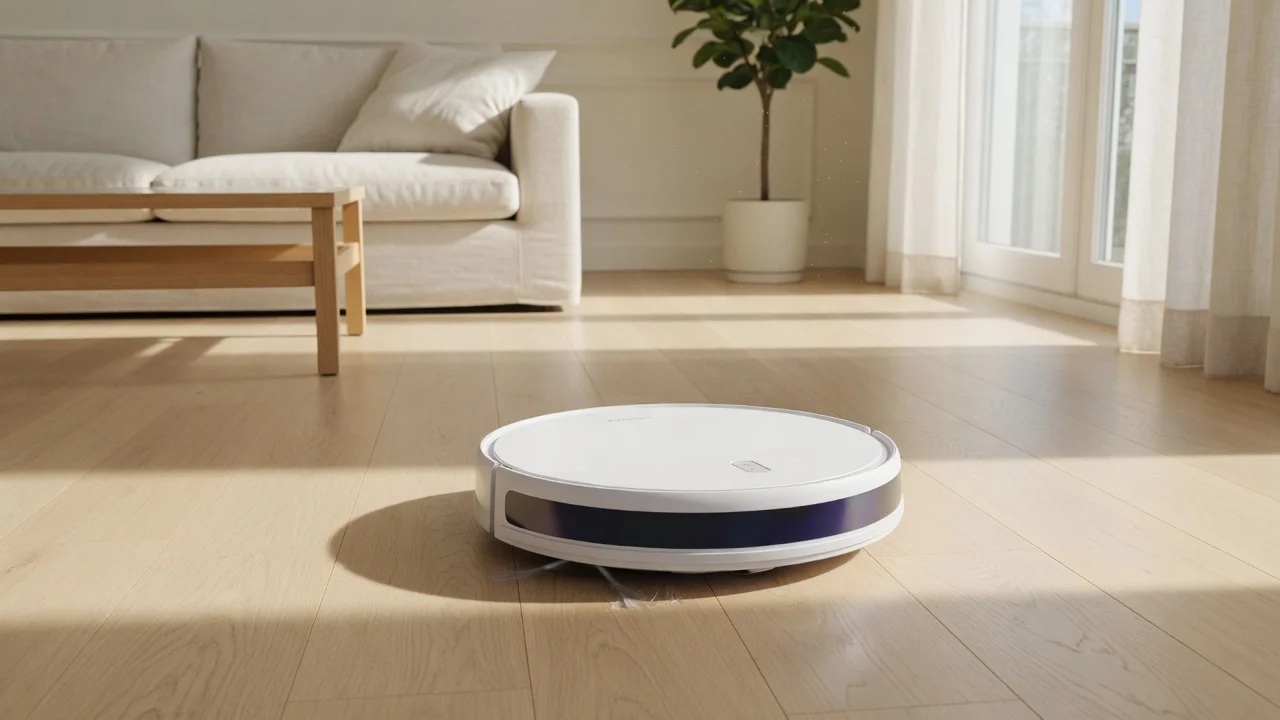
Quick Answer: Your robot vacuum won’t connect because it requires a 2.4GHz Wi-Fi network, not 5GHz. Most robot vacuums (including Roborock, Shark, and Roomba) only support 2.4GHz bands. To fix this, enable the 2.4GHz band on your router, disable 5GHz temporarily, or create a dedicated 2.4GHz guest network. Then reset the vacuum’s network settings, put it in pairing mode, and reconnect through the app.
Why Your Robot Vacuum Won’t Connect: The 2.4GHz vs 5GHz Problem
Even with the correct band, some routers block device-to-device communication. AP (Access Point) isolation is a security feature that prevents devices on the same network from talking to each other. While this is great for public Wi-Fi, it completely blocks your phone from sending pairing data to the vacuum. Log into your router and disable AP isolation for the 2.4GHz network. Additionally, check that the router’s firewall is not set to “High” security mode, which can block the vacuum’s outbound connection to the manufacturer’s cloud servers.
Step 4: Signal Strength and Placement
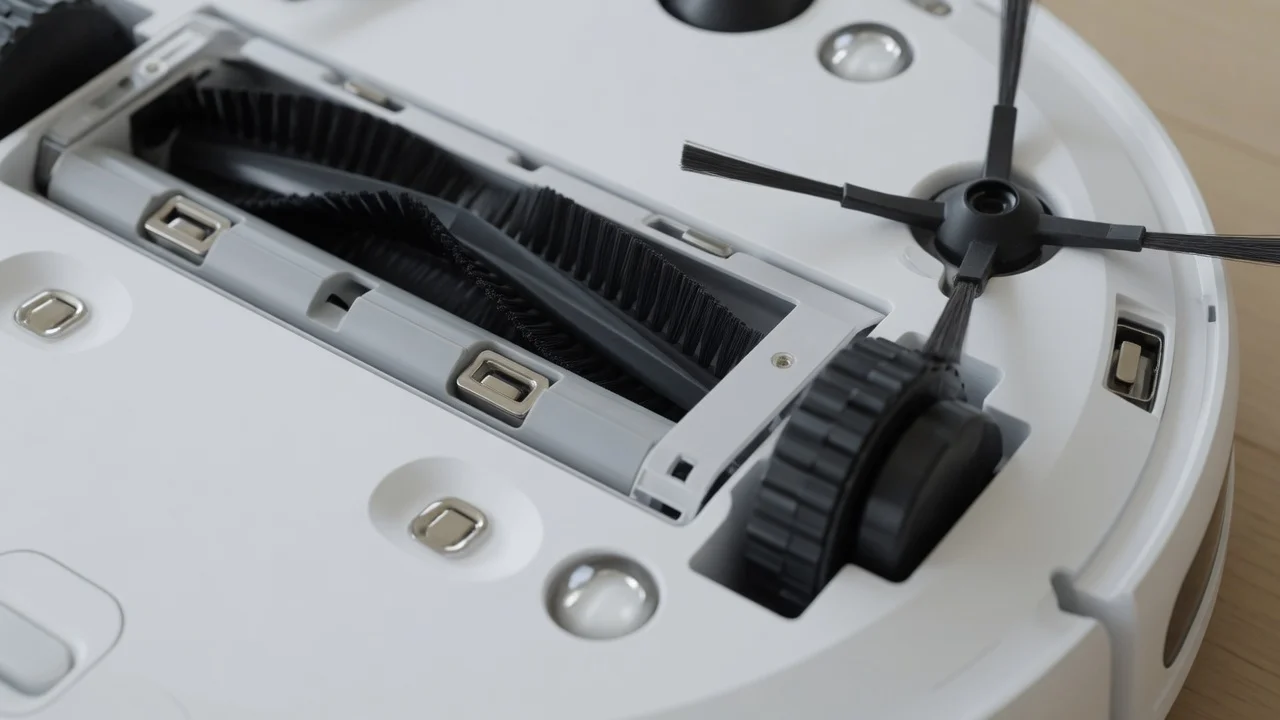
2.4GHz signals travel further than 5GHz, but they are still susceptible to interference from thick walls, metal appliances, and microwave ovens. If the vacuum is in a far corner of the house and the router is in the basement, the signal may be too weak to maintain a stable connection. Move the router to a central location, or install a Wi-Fi extender that broadcasts a 2.4GHz network. Ensure the vacuum is within 15-20 feet of the router during the initial pairing process, as the setup phase is the most sensitive to signal loss.
Step 5: App Permissions and Phone Settings
Sometimes the problem is not the vacuum or the router, it is the phone. The manufacturer’s app requires specific permissions to discover and configure the device. On both iOS and Android, ensure the app has permission to access Local Network (iOS) or Location (Android). Android requires location permission to scan for nearby Wi-Fi networks, even if you are not using GPS. Also, disable any VPN on your phone, as VPNs route traffic through a different network and will block the local discovery process.
Step 6: Firmware Updates and App Reinstallation
If all hardware checks pass, the issue may be a software bug. Check the vacuum’s firmware version in the app (if it is still connected) or on the manufacturer’s website. A known issue with early Roborock firmware caused intermittent Wi-Fi drops; a firmware update resolved it. If the app itself is corrupted, uninstall it, restart your phone, and reinstall the latest version from the official app store. Clear the app’s cache before attempting a fresh pairing.
Recommended Hardware & Essential Equipment
If your router is older or lacks the ability to separate bands, the most reliable fix is upgrading your networking hardware. The units below are verified to broadcast stable, dedicated 2.4GHz networks with easy-to-configure guest network options, eliminating the band-steering conflicts that cause robot vacuums to fail pairing. These routers also offer robust firewall controls, allowing you to disable AP isolation without exposing your home network to security risks.
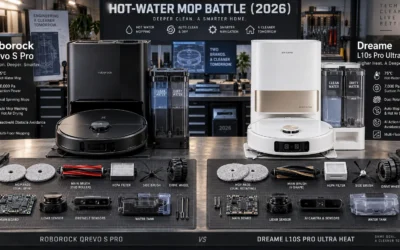
To compare alternative configurations, check our hands-on review of roborock qrevo s pro vs dreame l10s pro ultra heat.
Common Questions on Robot Vacuum Not Connecting To Wifi Answered
Why does my robot vacuum only work on 2.4GHz and not 5GHz?
Robot vacuums use low-cost Wi-Fi modules designed for the 2.4GHz band. This band offers longer range and better penetration through walls, which is ideal for a device that moves around the house. The 5GHz band, while faster, has a shorter range and is more easily blocked by obstacles. Manufacturers prioritize reliability over speed, so they omit 5GHz support entirely.
How do I fix a Roborock Wi-Fi connection error?
First, ensure your phone is connected to the 2.4GHz network. Then, reset the vacuum’s network by holding the Power and Home buttons for 10 seconds until you hear the “Wi-Fi reset” prompt. Re-add the device in the Roborock app. If the error persists, disable AP isolation on your router and check for firmware updates. Users looking for related component recommendations can explore our why is my robot vacuum not dispensing water breakdown.
Why does my Shark robot vacuum keep disconnecting from Wi-Fi?
The most common cause is the vacuum entering a deep sleep state to conserve battery, which drops the Wi-Fi connection. Wake the vacuum by pressing the Clean button, then check the app. If disconnections are frequent, move the router closer, disable band steering, or use a dedicated 2.4GHz guest network. A hard reset of the vacuum’s network settings also helps clear corrupted profiles.
How do I reset my robot vacuum’s network settings?
Hold the Power button and the Home (or Dock) button simultaneously for 10-15 seconds until you hear a voice prompt or see the Wi-Fi indicator light blink. For Shark models, press and hold the dedicated Wi-Fi reset button on the underside. This clears the saved network profile and puts the vacuum into pairing mode. Before finalizing equipment decisions, refer to our comprehensive can robot vacuums cross high thresholds comparison.
Can I use a guest network to connect my robot vacuum?
Yes. A guest network is often the best fix because you can configure it to broadcast only on 2.4GHz. This bypasses band steering and AP isolation issues. Connect your phone to the guest network, pair the vacuum, and then switch your phone back to your main network. The vacuum will remain connected to the guest network.
Next Step & Hardware Pairing: For recommended machine configurations and real-world durability tests, see our buyer guide on top-rated robot vacuums for carpets.
Final Checklist: Getting Your Vacuum Online
- Confirm your router broadcasts a 2.4GHz network with a distinct SSID.
- Disable band steering and AP isolation in router settings.
- Connect your phone to the 2.4GHz network before opening the app.
- Reset the vacuum’s network settings to enter pairing mode.
- Place the vacuum within 15-20 feet of the router during setup.
- Grant the app Local Network (iOS) or Location (Android) permissions.
- Disable VPNs and reinstall the app if pairing still fails.
By systematically working through these steps, you will resolve the vast majority of robot vacuum Wi-Fi connection failures. The 2.4GHz band requirement is the root cause in most cases, and the guest network fix is the most reliable workaround for stubborn dual-band routers. If you have exhausted all software and network settings, the issue may be a defective Wi-Fi module in the vacuum itself, which requires manufacturer support or replacement.
Connectivity Troubleshooting Background
Wireless setup problems often come down to router band settings and distance from the base. Owners with pets can look at the robot vacuum for pet hair, and general electrotechnical background on connected home devices is at International Electrotechnical Commission (IEC).