Running NVMe and SATA SSDs side-by-side in the same system is not a compromise—it is a deliberate architectural decision used by system builders, workstation engineers, and enthusiast PC builders every day in 2026. The question is not whether you can mix them; motherboard hardware has supported simultaneous NVMe M.2 and SATA operation for years. The real questions are whether the combination degrades either drive’s throughput, how the host controller arbitrates bandwidth, and how to configure the storage hierarchy so each drive handles the workload it is physically optimized for. This guide answers all three with hard specifications, controller-level analysis, and a practical deployment framework.
Quick Answer
Yes—mixing an NVMe M.2 drive with a 2.5-inch SATA SSD causes zero performance loss to either device. They operate on entirely separate electrical interfaces (PCIe vs. SATA III), use independent controller logic, and share no bandwidth. Install NVMe for OS/apps, SATA for bulk storage.
How NVMe M.2 and SATA SSDs Use Physically Separate Interfaces
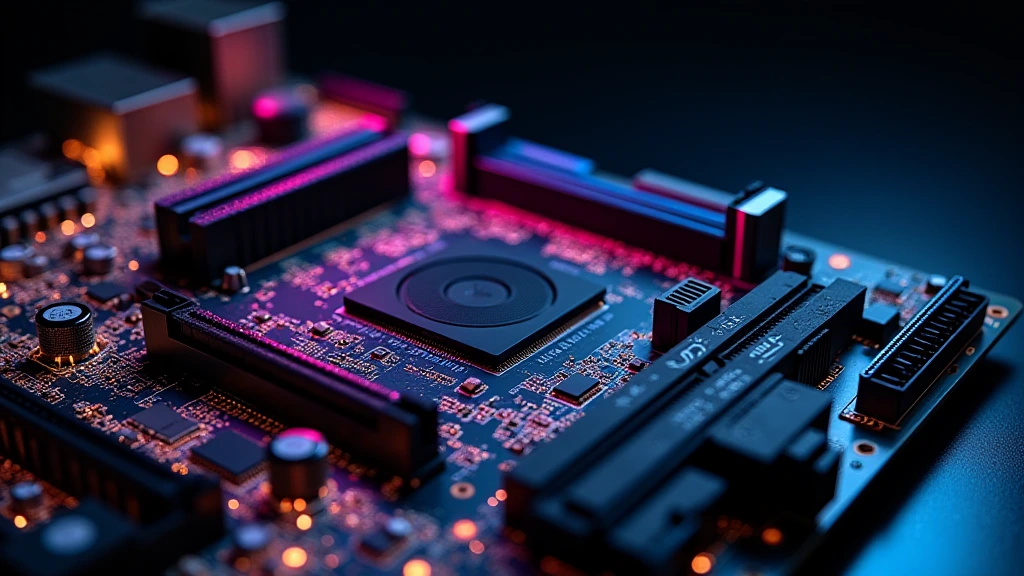
The foundational reason a mix nvme and sata ssd configuration produces no mutual interference is that the two storage protocols are electrically and logically independent. NVMe drives communicate over the PCIe bus—governed by the PCI-SIG PCIe Specification Standard—using a queue-depth model of up to 65,535 queues with 65,535 commands per queue. SATA III, by contrast, is a legacy serial interface operating at a fixed 6 Gb/s link rate with a single command queue capped at 32 entries via Native Command Queuing (NCQ). These two buses do not share bandwidth at the device level. An NVMe drive saturating its PCIe 4.0 x4 lane at 7,000 MB/s does not borrow a single megabyte of bandwidth from the SATA controller, and vice versa.
The M.2 Slot Ambiguity Problem
The confusion most users encounter begins at the M.2 connector itself. An M.2 physical slot is a form factor, not a protocol. A single M.2 slot can wire to PCIe lanes (NVMe), SATA lanes, or both depending on how the motherboard manufacturer routed traces on the PCB. This means a slot labeled “M.2_2” on a budget board may actually carry SATA signals, making an NVMe drive non-functional in it, or vice versa. Always cross-reference your motherboard’s storage specification table—not just the marketing summary—before purchasing drives. High-end platforms such as those reviewed in the ASUS ROG Maximus Z890 Hero vs MSI MEG Z890 ACE comparison dedicate all M.2 slots exclusively to PCIe 5.0 or 4.0 NVMe and route SATA through a separate chipset controller, eliminating this ambiguity entirely.
Chipset Lane Allocation and PCIe Multiplexing
On Intel Z890 and AMD X870E platforms, the CPU provides a fixed number of PCIe 5.0 and 4.0 lanes directly. Additional connectivity—including most SATA ports and secondary M.2 slots—runs through the Platform Controller Hub (PCH) or Fusion Controller Hub (FCH) via a high-speed DMI or IFOP link. When both an NVMe drive and a SATA SSD are active simultaneously, the NVMe drive on a CPU-direct lane experiences no chipset bottleneck whatsoever. The SATA SSD, operating through the chipset, shares that PCH uplink with USB controllers, audio, and other I/O—but at typical SATA III throughput of 550 MB/s, it consumes only a fraction of the available PCH bandwidth (typically 4–8 GB/s upstream on modern platforms). Contention is statistically negligible under any real-world storage workload.
Real-World Throughput: What Each Drive Actually Delivers

Understanding the raw numbers kills the myth that SATA somehow “holds back” an NVMe drive. These are independent ceilings, not a shared pool.
| Specification | NVMe M.2 (PCIe 4.0 x4) | NVMe M.2 (PCIe 5.0 x4) | SATA III 2.5-inch SSD |
|---|---|---|---|
| Interface Bandwidth (theoretical) | 8,000 MB/s | 16,000 MB/s | 600 MB/s |
| Typical Sequential Read | 6,500–7,300 MB/s | 12,000–14,700 MB/s | 540–560 MB/s |
| Typical Sequential Write | 5,000–6,800 MB/s | 10,000–13,000 MB/s | 500–530 MB/s |
| Random 4K Read IOPS | 800K–1,000K | 1,400K–1,800K | 90K–100K |
| Command Queue Depth | 65,535 queues / 65,535 cmds | 65,535 queues / 65,535 cmds | 1 queue / 32 cmds (NCQ) |
| Typical Latency (4K random read) | ~50–100 u00b5s | ~30–70 u00b5s | ~80–120 u00b5s |
| Typical Idle Power Draw | 1–3 W (active PS12) | 3–8 W (active) | 0.2–0.5 W (idle DevSleep) |
| Cost per TB (2026 market avg.) | ~$55–$80 | ~$90–$140 | ~$45–$65 |
| Endurance Rating (TBW per 1TB) | 600–1,000 TBW | 1,000–2,000 TBW | 300–600 TBW |
The table makes the architectural logic explicit: NVMe drives excel at low-latency, high-queue-depth random I/O—exactly what OS paging, application loading, and game asset decompression demand. SATA SSDs deliver linear sequential throughput that is entirely sufficient for bulk media reads, document archiving, and game libraries that tolerate a two-to-five second additional load time. When you mix NVMe and SATA SSD storage intelligently, you exploit both performance envelopes without wasting a single dollar on capacity you do not need at NVMe speeds.
Workload-to-Drive Assignment: The Engineering Framework
NVMe M.2: Assign These Workloads
Place your operating system partition on NVMe without exception. Windows 11, Linux kernel I/O scheduling, and macOS all generate heavy random 4K read/write patterns during boot, application launch, and virtual memory operations. The queue depth advantage of NVMe—up to 65,535 concurrent commands versus SATA’s 32—directly reduces the I/O wait time that manifests as UI stutter and slow application response under multitasking load. Beyond the OS, install your primary creative applications (Adobe Premiere scratch disks, Unreal Engine 5 project caches, Visual Studio build intermediates), your competitive or open-world games with long shader compilation pipelines, and any virtual machine disk images. These workloads saturate SATA NCQ instantly and benefit measurably from NVMe’s deeper queue architecture. For context on how CPU selection affects system-level I/O throughput and memory latency—both of which interact with storage pipeline performance—see the AMD Ryzen 5 9600X vs Intel Core Ultra 5 245K comparison.
SATA SSD: Assign These Workloads
A 2–4 TB SATA SSD is the correct home for raw video footage archives (H.264, H.265, ProRes), photograph libraries, music production sample banks, completed game installs that are already running (not loading), and any file the system reads sequentially rather than randomly. At 540 MB/s, a SATA SSD sustains sequential reads faster than a single 4K UHD video stream requires by a factor of roughly 40u00d7. The argument for upgrading that storage tier to NVMe does not exist for these workloads—the bottleneck is the media decoder pipeline and GPU memory bandwidth, not the storage bus. Speaking of GPU constraints, a properly balanced storage hierarchy pairs well with a well-specced graphics subsystem; the Radeon RX 9060 XT 8GB vs 16GB comparison walks through how VRAM capacity affects shader caching behavior, which indirectly relates to how frequently the system must reload assets from storage.
Platform-Specific Gotchas That Can Silently Degrade Performance
M.2 Slot Sharing with SATA Ports
This is the single most common cause of unexpected performance degradation in mixed-drive configurations, and it is entirely a motherboard routing decision, not a protocol limitation. On many mid-range and budget motherboards, populating a specific M.2 slot electrically disables one or two rear-panel SATA ports because both share the same chipset SATA lanes. If your BIOS detects this conflict and silently disables your SATA SSD without a warning message, you may find your bulk storage drive has vanished from Device Manager or /dev/ after adding an NVMe drive. The fix is straightforward: consult Section 1 of your motherboard manual under “M.2 and SATA bandwidth sharing” before purchasing, then populate M.2 slots in the order the manual specifies to preserve SATA port availability. Premium Z890 and X870E boards largely eliminate this issue by dedicating chipset lanes exclusively, but it remains prevalent on H610, B650, and B760 platforms.
PCIe Bifurcation and RAID Mode Conflicts
Enabling Intel Rapid Storage Technology (RST) RAID mode or AMD RAID in the BIOS—even if you are not building an actual RAID array—can prevent the OS from recognizing NVMe drives in AHCI/NVMe mode without installing the vendor RAID driver stack first. If you are running a mixed NVMe + SATA configuration and your SATA SSD was previously the boot drive under AHCI mode, switching to RST RAID to add NVMe will cause the existing Windows installation to blue-screen on boot (INACCESSIBLE_BOOT_DEVICE). The correct sequence: set storage mode in BIOS before installing Windows, or perform an in-place mode switch using the registry HKEY_LOCAL_MACHINESYSTEMCurrentControlSetServicesstorahci Start value method documented by Microsoft.
Thermal Throttling Under Sustained Mixed Load
High-performance PCIe 4.0 and 5.0 NVMe drives generate significant heat—controller temperatures between 65°C and 85°C under sustained sequential writes are normal for drives without heatsinks. At or above 85°C, most NVMe controllers activate thermal throttling, dropping sequential write speeds by 30–60% until the controller cools. This does not affect your