Quick Answer
A healthy GPU hotspot-to-core delta sits between 10°C and 20°C under sustained load. Hotspot readings up to 95°C are within NVIDIA’s and AMD’s rated limits for modern GPUs. Anything consistently above 100°C demands immediate action: repaste, increase airflow, or adjust fan curves before permanent silicon degradation occurs.
The temperature number your GPU monitoring software shows by default is a die-average, a composite reading across the entire GPU die. That number hides the most critical thermal data point your graphics card exposes: the hotspot temperature, a real-time reading from the single hottest zone detected across the die surface. Understanding the gap between these two figures, the thermal delta, is fundamental to diagnosing cooling efficiency, predicting long-term reliability, and making informed decisions about thermal paste, case airflow, and fan curve tuning. This guide delivers the full engineering breakdown, manufacturer thresholds, diagnostic logic, and corrective actions needed for 2026 hardware.
What the GPU Hotspot Sensor Actually Measures
Modern GPUs embed a distributed network of on-die thermal diodes. NVIDIA calls the resulting peak reading the hotspot; AMD surfaces it as the junction temperature (Tjunction). Both refer to the same physical quantity: the highest instantaneous temperature at any single monitored point on the GPU die, typically found at the shader cluster with the highest power density or near the HBM/GDDR interface pads. This is not a surface measurement , it is a silicon-level reading, which makes it significantly more actionable than an IR gun pointed at the heatsink base. Readers comparing setup options can review our technical analysis on how to clean gpu dust.
Core Temperature vs. Hotspot Temperature: The Engineering Distinction
The core (GPU) temperature reported in tools like MSI Afterburner, GPU-Z, or HWiNFO64 is a weighted average across all thermal diodes. It smooths out localized hot zones. The hotspot sensor bypasses that averaging and reports the worst-case location. For a well-designed and properly cooled card, the delta between core and hotspot, written as u0394T(hotspot-core), typically measures 8°C to 15°C at idle and 12°C to 22°C under full rasterization or ray-tracing workloads. When that delta climbs above 25°C to 30°C, the thermal interface material (TIM) beneath the heatsink is almost always the culprit: either it has dried out, was applied unevenly at the factory, or has migrated under the clamping pressure of the cooler. For a broader look at platform-level thermal management, the graphics card tests & GPU guides section covers cooler design comparisons across current GPU generations.
Why the Hotspot Reading Triggers Throttling Before Core Temperature Does
GPU firmware uses the hotspot reading, not the core average, to govern thermal throttling. On NVIDIA Ada Lovelace and Blackwell architectures, the Power Limit and Thermal Limit algorithms begin reducing boost clocks the moment the hotspot approaches its programmed limit, regardless of what the average core temperature reports. This is why a card can show an apparently reasonable 78°C core temperature while simultaneously dropping 200 to 400 MHz from its rated boost clock: the hotspot is already at 93°C and the throttle logic has engaged. Monitoring only the core temperature produces a false sense of thermal headroom and masks the real performance bottleneck.
Manufacturer Temperature Limits: Exact Thresholds by Architecture
Both NVIDIA and AMD publish or confirm thermal design limits for their architectures. These are not soft targets, they are the absolute maximum the firmware will tolerate before executing hard throttling or, at extreme exceedances, emergency shutdown. The table below consolidates current hotspot and junction limits alongside typical real-world delta observations. For platform pairing context relevant to these cards, see our AMD Ryzen 5 9600X vs Intel Core Ultra 5 245K comparison, which covers the CPU-side thermal picture in high-load gaming rigs.
| GPU / Architecture | Max Core Temp (TjMax) | Max Hotspot / Junction | Typical u0394T (Load) | Throttle Trigger |
|---|---|---|---|---|
| NVIDIA RTX 4090 (Ada) | 83°C (default limit) | 105°C | 12°C – 22°C | Hotspot u2265 105°C |
| NVIDIA RTX 5090 (Blackwell) | 85°C (default limit) | 110°C | 14°C – 24°C | Hotspot u2265 110°C |
| NVIDIA RTX 4070 Ti Super (Ada) | 83°C | 105°C | 10°C – 20°C | Hotspot u2265 105°C |
| AMD RX 7900 XTX (RDNA 3) | 110°C (junction) | 110°C Tj | 15°C – 25°C above edge | Tj u2265 110°C |
| AMD RX 9060 XT (RDNA 4) | 95°C (edge) | 110°C Tj | 12°C – 20°C | Tj u2265 110°C |
| AMD RX 7600 (RDNA 3) | 105°C (junction) | 105°C Tj | 10°C – 18°C above edge | Tj u2265 105°C |
AMD’s approach differs subtly from NVIDIA’s. AMD’s primary thermal governor uses Tjunction, which is functionally equivalent to NVIDIA’s hotspot, as the primary clock-control input. For the Radeon RX 9060 XT 8GB vs 16GB comparison, both configurations share the same RDNA 4 thermal architecture, meaning hotspot behavior is identical between memory variants; the difference in thermals between them is negligible. Detailed NVIDIA threshold documentation is maintained through NVIDIA GeForce Hardware Documentation.
What Is an Acceptable Thermal Delta? Diagnostic Ranges
The thermal delta , u0394T(hotspot, core) , is the single most informative number for evaluating cooler health. A large delta does not automatically indicate danger if the absolute hotspot value is within spec, but it does indicate a degraded or poorly designed thermal interface. Use these ranges as diagnostic checkpoints: For complementary field maintenance guidelines, examine our breakdown of vertical gpu mount airflow.
u0394T 8°C – 15°C: Optimal
Fresh high-quality TIM (Thermal Interface Material), proper die contact pressure, and adequate airflow produce this range. Cards running in this band are not throttling due to thermal limits. Expect this from new AIB designs using vapor chambers or thick copper heatpipe arrays with even coldplate contact. No corrective action required, maintain chassis airflow and monitor quarterly.
u0394T 16°C – 25°C: Normal-to-Monitor
This range is the most common real-world operating window for reference and mid-range AIB coolers after 12 to 18 months of use. TIM has partially cured and settled. Performance impact is minimal as long as the absolute hotspot stays below 90°C on NVIDIA or below 95°C junction on AMD. Document the current readings as a baseline. If the delta increases by more than 5°C over 6 months, begin planning a repaste.
u0394T 26°C – 35°C: Degraded, Action Recommended
At this delta, the TIM has dried, cracked, or migrated. The hotspot is pulling away from the core average because heat is no longer transferring uniformly across the die-to-coldplate interface. Performance throttling is likely occurring intermittently in sustained workloads. Disassembly, full TIM removal with IPA and a microfiber cloth, and reapplication with a quality compound (Thermal Grizzly Kryonaut, Dowsil TC-5026, or similar) is the correct corrective action.
u0394T above 35°C: Critical, Immediate Intervention
A delta exceeding 35°C with the card under full load points to either catastrophic TIM failure, a warped coldplate, a detached heatpipe, or severely inadequate chassis airflow. At this range the hotspot is approaching or exceeding rated limits even when the average core temperature appears tolerable. This produces visible artifacts, driver crashes, and accelerated electromigration in the copper interconnects of the GPU die. Strip, inspect, and repaste before further use. Also evaluate whether the case has adequate intake-to-exhaust airflow; negative pressure cases running GPU-heavy loads require immediate reconfiguration.
Factors That Inflate GPU Hotspot Temperature
Thermal Interface Material Degradation
Silicone-based TIMs, which most AIB manufacturers use at the factory, begin outgassing and losing thermal conductivity within 18 to 36 months of continuous thermal cycling. Phase-change materials degrade faster under stop-start thermal cycles, common in gaming PCs that idle for hours then run at full load. After TIM degrades, air pockets form at the die edges, the hotspot reading jumps 8°C to 15°C, and throttling follows. Replacing factory TIM with a premium compound drops hotspot readings by 10°C to 18°C on older cards in typical real-world results.
Chassis Airflow Restriction
A GPU exhausts heat either through its own blower or into the chassis airstream (open-air coolers). When case airflow is inadequate, blocked intake filters, no front fans, or cable obstruction within 30mm of the GPU shroud, the GPU recirculates hot air and the hotspot climbs 5°C to 12°C above what the same card achieves in an open test bench. The fix: install at minimum two 140mm or three 120mm intake fans pushing filtered air directly toward the GPU, and ensure at least one exhaust fan at the rear or top. Motherboard selection also affects GPU airflow geometry; the ASUS ROG Maximus Z890 Hero vs MSI MEG Z890 ACE analysis covers how board layout and VRM positioning influence airflow paths around the primary PCIe slot.
Ambient Temperature and Seasonal Variation
GPU hotspot temperature tracks ambient room temperature on approximately a 1:1 ratio. A card that runs a 22°C hotspot delta at 20°C ambient will run approximately the same delta at 30°C ambient, but the absolute hotspot reading climbs by 10°C. In summer months in warm climates, a card that was comfortably within spec during winter may begin throttling with no hardware change whatsoever. This is expected behavior, not hardware failure. Adding an intake fan, improving room ventilation, or adjusting the fan curve seasonally corrects for this.
Power Limit and Overclocking
Raising power limits via BIOS or Afterburner increases total die power density. Since the hotspot tracks the highest-density shader cluster, a 10% power limit increase typically raises the hotspot 4°C to 8°C beyond the linear prediction. Undervolting, reducing the voltage at a given clockspeed, is the most thermally efficient overclock strategy: it reduces die power density, drops hotspot temperatures by 5°C to 12°C, and in many cases sustains higher stable boost clocks than a simple frequency overclock. When CPU-GPU co-optimization matters for thermal budget allocation, the desktop CPU benchmarks & reviews section provides platform-level power analysis useful for shared-cooling scenarios like small form factor builds.
How to Monitor GPU Hotspot Temperature Correctly
Using the right tool and the right sensor matters. Default Windows overlays and many in-game performance displays show only the primary GPU temperature (core average). To access hotspot data:
- HWiNFO64, the most complete sensor enumeration tool; shows GPU Temperature, GPU Hot Spot, GPU Memory Junction (on HBM cards) as separate rows. Use the Sensors-only window and pin relevant rows to a custom dashboard.
- MSI Afterburner with RivaTuner Statistics Server, add “GPU Hot Spot Temperature” to the monitoring graph and on-screen display. Only shows the sensor if the driver exposes it, which NVIDIA drivers (R525 and later) and AMD Adrenalin 23.x and later do reliably.
- GPU-Z, displays hotspot under “GPU Temp (Hotspot)” in the Sensors tab. Useful for snapshot readings but lacks logging granularity for sustained load analysis.
- NVIDIA System Management Interface (nvidia-smi), command-line; query with
nvidia-smi --query-gpu=temperature.gpu,temperature.gpu_diode --format=csvfor scripted monitoring in workstation deployments.
Log hotspot data over a minimum 20-minute sustained GPU load (not an instantaneous reading) using a consistent benchmark, Unigine Superposition 1080p Extreme or 3DMark Speed Way are reproducible reference workloads. Point-in-time readings during variable gaming loads are insufficient for establishing a reliable thermal baseline.
Final Diagnostic Verdict & Maintenance Checklist
GPU hotspot temperature is the authoritative thermal signal for boost clock stability, long-term silicon reliability, and cooler health evaluation. The acceptable hotspot absolute range for NVIDIA Ada and Blackwell is up to 100°C sustained (105 to 110°C absolute maximum before hard throttle). For AMD RDNA 3 and RDNA 4, Tjunction up to 105°C is within operational spec (110°C hard limit). The thermal delta between hotspot and core average is the diagnostic lever: it tells you why the hotspot is where it is, independent of absolute values.
Use the following maintenance checklist on an annual basis or any time hotspot readings increase by more than 8°C from a previously established baseline:
- Establish a thermal baseline, run a 20-minute sustained GPU benchmark and log core temperature, hotspot temperature, and ambient room temperature simultaneously. Record the delta and the absolute hotspot peak.
- Clean the heatsink and fans, compressed air through the fins with the card removed from the system, not in-situ. Dust compaction inside a heatsink fin stack raises hotspot readings 3°C to 8°C before TIM even becomes relevant.
- Verify chassis airflow configuration, confirm positive or neutral pressure with at minimum two front intake fans. Check that no cables obstruct the GPU shroud within 30mm.
- Repaste if u0394T exceeds 25°C or if the card is over 2 years old under regular use, disassemble the cooler, clean die and coldplate surfaces fully with 99% IPA, apply 0.3g to 0.5g of quality compound using a thin center-dot or cross pattern, and reinstall with consistent, even screw torque.
- Tune the fan curve, default AIB fan curves prioritize acoustics over thermals. Set a custom curve that targets 60% fan speed at 75°C hotspot and 80% at 85°C hotspot, rather than letting the GPU coast at 40% until the hotspot climbs past 90°C.
- Evaluate undervolting, use AMD Adrenalin’s voltage/frequency curve editor or MSI Afterburner’s voltage-frequency curve to reduce operating voltage by 50 to 75mV at the card’s stable peak boost frequency. Re-validate stability with 30 minutes of synthetic load before finalizing.
- Re-benchmark and compare to baseline, confirm hotspot delta has returned to the 10°C-20°C target range and absolute hotspot is at least 10°C below the hard throttle limit under worst-case ambient conditions.
A card maintained within these parameters, clean, correctly pasted, properly ventilated, and running a sensible fan curve, will operate within manufacturer thermal specifications for its entire service life without throttling, without driver instability attributed to thermal stress, and without the accelerated solder joint fatigue that repeated thermal excursions into the 100°C+ hotspot range produce. The hotspot sensor exists precisely to give you this visibility; using it is the baseline competency for any serious PC hardware owner in 2026.
Pros
- 24GB VRAM is a major advantage for memory-intensive workloads
- 384-bit memory bus supports strong data throughput
- Modern display connectivity includes DisplayPort 1.4a and HDMI 2.1
- Official Founders Edition model from NVIDIA
Cons
- The listing does not include practical details such as power requirements or physical dimensions
- It is a flagship-class card that may be more than casual gamers or general users need
- Compatibility checks are necessary because the manufacturer listing does not specify cooling, PSU, or accessory details
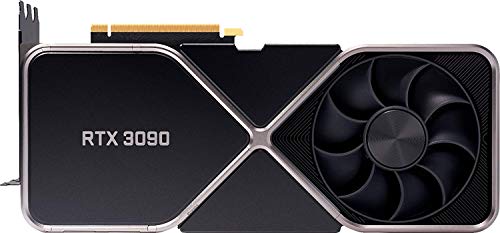
Overview: The NVIDIA GeForce RTX 3090 Founders Edition is a premium desktop graphics card built for users who need top-tier GPU capability. It combines the RTX 3090 chipset with 24GB of GDDR6X memory, making it a strong specification choice for demanding graphics tasks.
Performance: With a 384-bit memory interface and modern output options, this card is well suited to high-resolution gaming, rendering, and other workloads that benefit from large VRAM capacity. The three DisplayPort 1.4a connections and one HDMI 2.1 port also make it practical for current monitors and multi-display setups.
Drawbacks: The manufacturer listing leaves out important setup information such as power draw, card size, and included accessories. It is also a high-end model, so users with lighter gaming or productivity needs may not fully use its capabilities.
Verdict: This card is best for enthusiasts, creators, and professionals who prioritize memory capacity and NVIDIA's reference Founders Edition design. If you need a powerful GPU for demanding workloads and want the RTX 3090 class of performance, it is a compelling option.

Pros
- Very large 24GB frame buffer for demanding workloads and future-facing gaming setups.
- Strong ray tracing and AI acceleration from 2nd Gen RT Cores and 3rd Gen Tensor Cores.
- Durable TUF build with military-grade components and dual ball fan bearings.
- Includes HDMI 2.1 and DisplayPort 1.4a for modern high-resolution displays.
Cons
- This is a high-end, premium-class GPU that will be excessive for casual or 1080p-only gaming.
- The product data does not list dimensions, power requirements, or included accessories, so build planning may require extra checking.
- Tuning software is included, but the card may still demand a capable cooling and power setup in a well-prepared system.
Overview & Design: The ASUS TUF Gaming NVIDIA GeForce RTX 3090 is a flagship-class graphics card built around NVIDIA Ampere architecture. It is positioned for users who want a high-end GPU with a focus on durability, cooling design, and long-term stability.
Performance & Key Features: With 24GB of GDDR6X memory, 2nd Generation RT Cores, and 3rd Generation Tensor Cores, this card is designed for demanding gaming and creative workloads. It is well suited to 4K and 8K output, ray tracing, and AI-assisted features such as DLSS, while HDMI 2.1 and DisplayPort 1.4a support modern display setups.
Drawbacks & Considerations: Based on the product data, this is clearly a premium, high-performance GPU, which makes it more card than many users need for everyday gaming. The listing also does not provide dimensions, power draw, or accessory details, so buyers should confirm system compatibility before purchase.
Verdict: The TUF RTX 3090 is best for enthusiasts, creators, and power users who want top-tier GPU memory capacity and strong cooling-focused construction. If you need a durable high-end card for heavy workloads or high-resolution gaming, it is a compelling option.

Pros
- High-end RTX 5080 performance platform with 16GB GDDR7 memory.
- Quad-fan cooling and vapor chamber design focus on stronger thermal control.
- Protective PCB coating adds practical durability benefits.
- Factory OC profile reaches up to 2790 MHz in OC mode.
- Backed by a 3-year warranty.
Cons
- The quad-fan cooler may be less suitable for compact cases, so fitment should be checked carefully.
- As a flagship-class GPU, it is most appropriate for users who truly need top-tier performance.
- The listing does not provide full compatibility details such as dimensions, power requirements, or display outputs.
Overview: The ASUS ROG Astral NVIDIA GeForce RTX 5080 16GB GDDR7 White OC Edition is a premium graphics card aimed at enthusiast gaming and advanced PC builds. Its white finish and quad-fan cooling solution give it a distinctive look while signaling a focus on thermal performance.
Performance: Built on NVIDIA Blackwell and supporting DLSS 4, this model is positioned for demanding gaming and GPU-heavy workloads. ASUS lists a boost of up to 2790 MHz in OC mode, 1899 AI TOPS, and 16GB of GDDR7 memory, while the quad-fan design is intended to improve airflow and pressure by up to 20%.
Considerations: This is a large, high-end card, so buyers should confirm case space and overall system compatibility before purchase. The raw listing does not include full details such as dimensions, power draw, or port layout, so those specifications should be checked separately.
Verdict: For users building a premium gaming or creator system that can benefit from strong cooling, modern memory, and RTX 5080-class performance, this ASUS ROG Astral model is a strong candidate. It is best suited to enthusiasts who want a feature-rich card with a focus on sustained thermal control.

Pros
- Advanced thermal system combines a quad-fan design, vapor chamber, and thermal pad for strong cooling potential
- 16GB GDDR7 memory suits demanding modern games and creator workloads
- PCIe 5.0 and HDMI/DP 2.1 provide up-to-date interface support
- Backed by a 3-year warranty for added ownership confidence
Cons
- The 3.8-slot, quad-fan design is large and may not fit smaller cases easily
- This is a premium RTX 5080 OC model, so it may be more power and performance than some users need
- The listing does not provide full fitment details such as exact dimensions, so buyers should verify case clearance before purchase
Overview: The ASUS ROG Astral NVIDIA GeForce RTX 5080 16GB GDDR7 OC Edition is a premium high-end graphics card built for serious gaming rigs and demanding creator systems. Its large 3.8-slot design and 4-fan cooler give it a substantial, performance-focused presence.
Performance: NVIDIA Blackwell support, DLSS 4, PCIe 5.0, and 16GB of GDDR7 memory make this card well suited to modern games and advanced graphics workloads. The quad-fan layout, patented vapor chamber, and phase-change thermal pad are all aimed at keeping temperatures lower during sustained heavy use.
Drawbacks: The biggest limitation is physical size. A 3.8-slot card can be difficult to fit in compact cases, and the premium OC positioning may be more than many mainstream users require. The manufacturer listing also does not include every compatibility detail, so measuring clearance beforehand is important.
Verdict: This ASUS ROG Astral RTX 5080 is best for enthusiasts who want advanced cooling, current-generation connectivity, and high-end NVIDIA performance in a well-built flagship card. If your case has the room and your system is built for top-tier gaming or creative work, it is a strong option.

Pros
- 10,240 CUDA cores with a 2.55 GHz boost clock
- 16GB GDDR6X on-board memory for heavy visual assets
- 3rd Gen Ray Tracing and 4th Gen Tensor Cores
- Supports NVIDIA DLSS and G-SYNC technologies
- Backward-compatible with PCIe 3.0 slots
Cons
- At over 12 inches long, case compatibility can be limited
- Significant power and system cooling requirements

Pros
- Large 32GB VRAM capacity is well suited to AI and pro-level workloads.
- Purpose-built cooling hardware supports long, sustained sessions under load.
- AI TOP Utility adds useful monitoring and tuning support.
- Double ball bearing fan design improves durability versus conventional fan bearings.
Cons
- The blower-style Turbo Fan design may be louder than open-air cooling solutions under heavy load.
- Its workstation-focused feature set may be more than most casual gaming users need.
- Some practical buying details, such as dimensions and power requirements, are not provided in the manufacturer listing.
Overview: The GIGABYTE Radeon AI PRO R9700 AI TOP 32G is a workstation-oriented graphics card built around AMD Radeon AI PRO R9700, RDNA 4, and 32GB of GDDR6 memory. The metal-heavy Turbo Fan design gives it a serious, durable feel and suggests a focus on sustained workloads rather than flashy styling.
Performance: With 2nd-gen AI accelerators, a 256-bit memory bus, and PCIe Gen 5 support, this card is aimed at AI development, fine-tuning, and demanding creative work. The AI TOP Utility adds practical tools for checking hardware status and following LLM fine-tune progress.
Considerations: The blower-style cooling system and workstation focus are strong for heat control and multi-GPU setups, but they may not be the quietest or most budget-friendly choice for general gaming builds. The manufacturer listing also leaves out some comparison details that buyers often want, such as dimensions and power needs.
Verdict: This model makes the most sense for professionals and advanced enthusiasts who need high VRAM, AI-oriented acceleration, and reliable cooling for long sessions. For everyday gaming users, the feature set may be more capacity than necessary.

Pros
- Built on NVIDIA Blackwell architecture for the latest RTX platform features.
- 16GB GDDR7 and a 256-bit interface support demanding games and creative applications.
- Modern display connectivity with DisplayPort 2.1a and HDMI 2.1b.
- Supports up to 7680 x 4320 output for high-end display configurations.
Cons
- This is a high-end graphics card, so it is aimed at enthusiasts rather than budget builds.
- The manufacturer listing does not list dimensions, weight, or power connector requirements, which makes compatibility checks harder.
- Only one HDMI port is listed, which may be limiting for users who prefer multiple HDMI displays.
Overview: The MSI Gaming RTX 5080 16G SUPRIM Liquid SOC is a premium graphics card built around NVIDIA's GeForce RTX 5080 and Blackwell architecture. It combines 16GB of GDDR7 memory with MSI's SUPRIM Liquid positioning for an enthusiast-focused build.
Performance: With a 256-bit memory interface, a listed extreme performance clock of 2760 MHz, and support for up to 7680 x 4320 resolution, this card is aimed at high-refresh 4K gaming, demanding creative work, and multi-monitor setups. The inclusion of DisplayPort 2.1a and HDMI 2.1b gives it modern connectivity for current displays.
Drawbacks: The manufacturer listing does not include physical dimensions, weight, power connector details, or bundle contents, so compatibility planning requires a separate check. It is also clearly positioned as a high-end part, which may be more than casual or value-focused buyers need.
Verdict: This model makes the most sense for enthusiasts who want a top-tier MSI RTX 5080 with strong memory capacity and current-gen display support. If you are building a premium gaming or creator PC and can verify case and PSU compatibility, it is a compelling option.
Power and Heat Reading
Hotspot readings can climb when power delivery is strained, so the topic of gpu power cable sits close to this one. Safety guidance for checking connectors is at American National Standards Institute (ANSI), worth reviewing first.