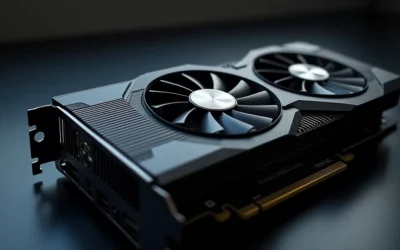
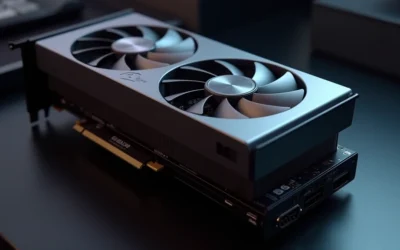
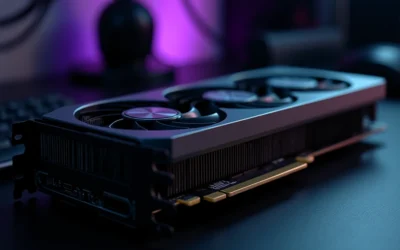
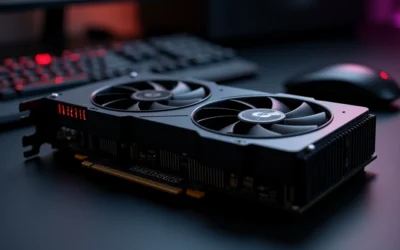
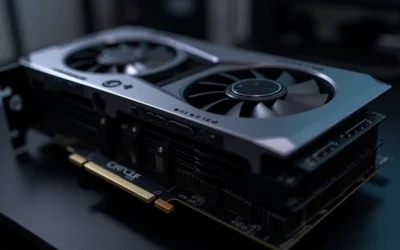
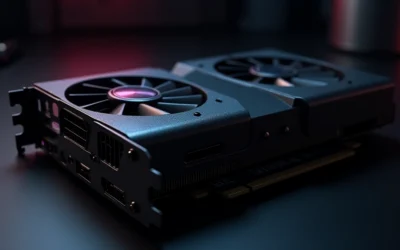
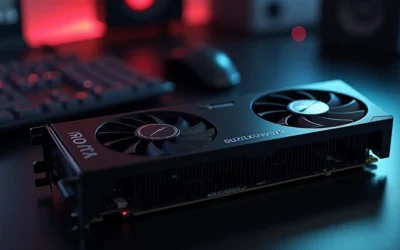
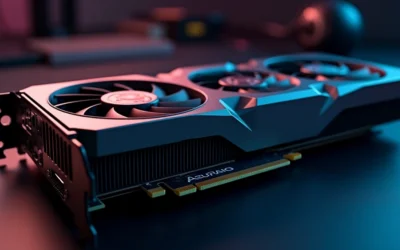
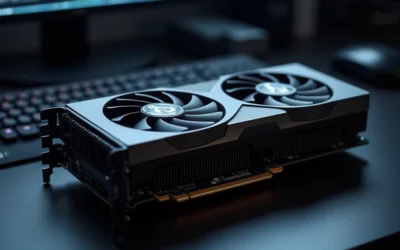
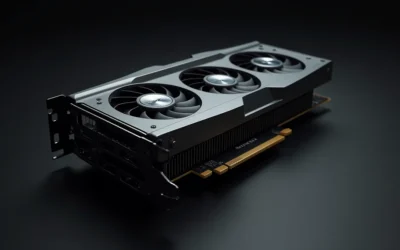
GPU fans that sit motionless at the desktop are, in the overwhelming majority of cases, operating exactly as designed. Since ASUS popularized 0dB cooling with the DirectCU II series and NVIDIA adopted semi-passive fan curves on Founders Edition cards, virtually every discrete graphics card shipped in the last decade shuts its fans off below a defined core temperature threshold. The engineering problem for a diagnostician is therefore not “are the fans spinning” but “do the fans spin when thermally commanded to.” This guide separates engineered silence from genuine failure using measurable criteria: temperature thresholds, RPM telemetry, load behavior, and electrical inspection — the same triage methodology used in hardware lab validation.
Quick Answer
GPU fans not spinning below roughly 50–60 °C core temperature is normal zero-RPM (0dB / semi-passive) operation. It becomes a fault only when fans refuse to spin at a forced 100% duty cycle or when the GPU exceeds 80 °C under load without any fan rotation. Verify with a stress test plus a manual fan-override utility before assuming hardware failure.
Zero-RPM Mode: Engineered Silence, Not a Fault
How Semi-Passive Cooling Actually Works
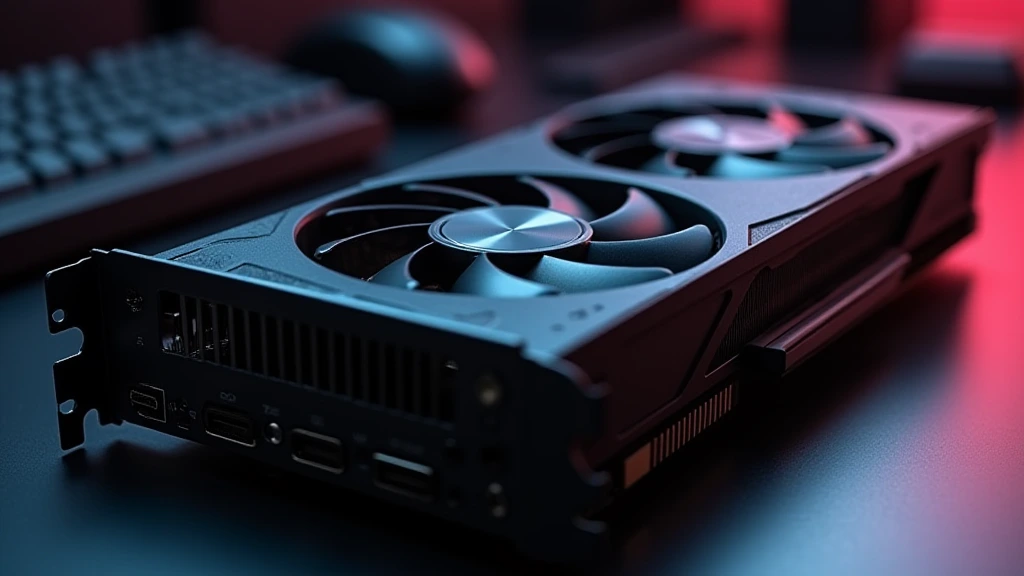
The behavior is controlled entirely by the card’s vBIOS fan curve, not by Windows or the driver. Below a programmed core temperature, the fan controller sets a 0% PWM duty cycle, the fan motors receive no drive voltage, and the heatsink dissipates the card’s 10–25 W idle load passively. Once the die crosses the activation threshold, the controller ramps duty cycle according to the curve. Critically, firmware applies hysteresis — typically 5–10 °C — so fans that start at 55 °C will not stop until the die falls to 46–50 °C. This prevents the audible stop-start oscillation that would occur if the threshold were a single trip point.
Per NVIDIA GeForce Hardware Documentation, modern reference coolers are validated for fully passive operation at idle power levels, which is why the company’s own control panels expose user fan curves rather than fixed RPM ladders. AMD’s Radeon Adrenalin software behaves the same way with its Zero RPM toggle. Some vendors factor GPU utilization into the decision in addition to temperature, spinning fans earlier under bursty workloads even when the die is cool, because transient loads outpace sensor reporting latency.
Activation Thresholds by Vendor and Platform
Thresholds vary by cooler generation and vendor branding, but the operating band across the pc hardware 2026 generation remains tight — between 45 °C and 60 °C. The table below consolidates the commonly documented values:
| Vendor / Branding | Fan-Stop Feature Name | Fans Off Below (approx.) | Hysteresis Behavior |
|---|---|---|---|
| NVIDIA Founders Edition | 0dB / auto fan-stop | ~45–50 °C core | Fans stop ~5 °C below spin-up point |
| AMD Radeon (reference / AIB) | Zero RPM | ~50–60 °C core | Software toggle in Adrenalin; user curve can override |
| ASUS | 0dB Technology | ~50 °C core | Fan Curve tab can disable 0dB entirely |
| MSI | Zero Frozr | ~55–60 °C core | Toggle in MSI Center; load-aware on some models |
| Gigabyte | 3D Active Fan | ~55 °C core or low load | Indicator LED shows fan-stop state on some models |
| Sapphire / other AMD AIBs | Intelligent Fan Control | ~55 °C core | TriXX utility allows per-fan curve editing |
A related and frequently misread behavior: most cards perform a brief full-speed fan pulse at power-on as a self-test, then park the fans if the die is cool. Fans that twitch once during POST and then stop, with idle temperatures in the 30–50 °C range, are healthy. Current mainstream boards — the coolers examined in our Radeon RX 9060 XT 8GB vs 16GB comparison are typical — use dual- or triple-fan semi-passive designs where each fan also has its own independently addressable zone on higher-tier SKUs.
The 10-Minute Verification Protocol
Forced Duty-Cycle Test
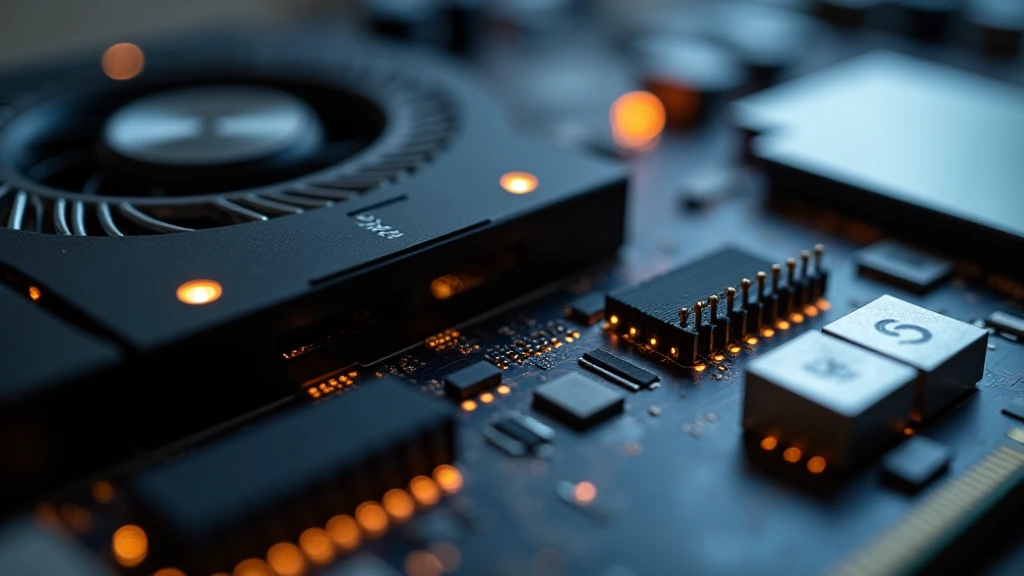
This is the single decisive test. Open MSI Afterburner (works on both NVIDIA and AMD cards), drag the fan-speed slider to 100%, and click apply. Two outcomes are possible:
- Fans spin at 100%: the motors, wiring, and fan controller are electrically sound. The earlier silence was zero-RPM firmware behavior or a software curve override. Configure a custom fan curve and you are done.
- Fans remain dead at 100%: you have a genuine hardware fault — a dead motor, a severed fan harness, a detached connector, or a failed controller IC. Proceed to hardware inspection.
If Afterburner cannot take fan control (“fan speed control unavailable” or a locked slider), the card’s vBIOS may not expose fan control, or a vendor utility is holding the controller. Close all vendor RGB/fan suites, restart, and retry with AMD Adrenalin (Radeon) or NVIDIA’s control panel as appropriate.
Thermal Ramp Confirmation
Run a controlled load — 3DMark’s Time Spy stress loop, FurMark, or a modern AAA title — while logging core temperature and fan RPM in HWiNFO64. Watch for the spin-up event: fans should start rotating once the die crosses the vendor threshold and should be audibly ramping by 70 °C. If the GPU climbs past 80–85 °C with zero rotation and no RPM telemetry reported, the card is at or near its thermal limit (most throttle between 83 °C and 95 °C) and the fault is confirmed mechanical or electrical, not cosmetic.
Telemetry Interpretation
Read the fan RPM sensor fields directly. A reported 0 RPM while the fans are visibly spinning indicates a failed tachometer signal — the fan works, but the controller cannot verify speed and may run it at full duty as a failsafe. A reported fixed, implausible value (for example, 6,800 RPM constant regardless of load) on multi-fan cards often means only the tach of fan one is wired, which is normal on many cost-reduced designs. Distinguish sensor faults from motor faults before ordering parts.
Genuine Fan Failure: Root Causes and Electrical Diagnosis
Mechanical Failure Modes
Fan motors fail in predictable patterns. Sleeve bearings wear unevenly and produce grinding or ticking before seizure; fluid dynamic bearings degrade more gracefully but still fail after 30,000–50,000 hours. Physical obstruction is equally common: a loose power cable dragged into the shroud, accumulated dust caking the hub, or a warped blade after transport. One diagnostic cue — rock the blade gently with the system off. A healthy fan spins freely with slight magnetic detent feel; a gritty, notchy rotation indicates bearing failure. Never force a stalled fan to spin with a finger while powered; back-EMF from a stalled motor can damage the drive circuitry over time.
Connector and Harness Faults
On most cards, all fans connect to a single small connector on the PCB or share a daisy-chained ribbon harness. Consequence: one unplugged or damaged connector kills every fan simultaneously, which mimics controller failure. When one fan spins and its neighbors do not, the fault is almost always in the harness between the working fan and the dead one, not in the motors. Vertical GPU mounts and riser cables add a second failure class — a card that shows no display and no fan spin at all may simply not be initialized, pointing to PCIe slot seating, riser integrity, or supplementary PCIe power delivery rather than the cooling system.
Controller and vBIOS-Level Faults
The fan controller is a small IC on the GPU PCB driving the PWM signal. It can fail from voltage transients or board flex. Suspect it when the forced 100% test fails, the harness is verified intact, and the fans spin correctly when momentarily powered from an external 5 V or 12 V source (a bench test for experienced users only). A corrupted vBIOS can also load a broken fan table; a reflash with the vendor’s stock vBIOS image resolves rare cases, but this is an advanced operation that carries a real brick risk and should only be attempted when the card is already out of warranty.
Software Causes: Fan Curves, Drivers, and Conflicting Utilities
Fan Curve Misconfiguration and Hidden 0dB Toggles
User-defined fan curves persist across reboots in utilities like Afterburner, and a curve set to 0% below 70 °C will keep fans parked far longer than stock firmware — this is the most common “my gpu fans not spinning” report that is neither zero-RPM design nor hardware failure. Vendor utilities bury the fan-stop feature in odd places: ASUS GPU Tuck III hides it inside the Fan Curve page, MSI Center under a Zero Frozr toggle, Adrenalin under Performance u2192 Tuning u2192 Fan Control. Check all three layers — vendor utility, third-party utility, and driver control panel — because the last tool to write a curve owns the controller at boot.
Driver Reset and Utility Conflicts
A driver crash or a Windows update can leave the fan controller in an undefined state, occasionally parked. A full shutdown (not a restart, which preserves some device states), followed by a clean driver reinstall using DDU in Safe Mode, eliminates the software layer definitively. Running two fan-control utilities simultaneously — Afterburner plus a vendor suite — produces races where one tool zeroes the duty cycle the other just set. Pick one controller.
System Thermals Shift the Threshold
Zero-RPM behavior interacts with total system heat. A case with poor exhaust keeps idle GPU core temperature above the fan-stop threshold, so fans that used to park at the desktop now run constantly; users interpret this as a new fault when it is conservation of heat. CPU choice matters here: efficiency-focused platforms like the ones compared in our AMD Ryzen 5 9600X vs Intel Core Ultra 5 245K analysis dump substantially less heat into the chassis at idle, letting semi-passive GPU cooling engage earlier and stay engaged longer. For pairing decisions, our desktop CPU benchmarks & reviews include the thermal envelopes that determine case airflow requirements.
BIOS and Motherboard Layer
The motherboard does not control GPU fans, but it controls every chassis fan responding to the same heat. Owners configuring a full thermal strategy on enthusiast platforms — the fan-control ecosystems compared in our ASUS ROG Maximus Z890 Hero vs MSI MEG Z890 ACE breakdown — should set chassis intake curves so that GPU waste heat is evacuated before it defeats the card’s own zero-RPM band. Intake fans tied to a GPU-temperature sensor input are the correct architecture, and both of those boards expose GPU temp as a fan-curve source.
Hardware Repair Path and Replacement Economics
Safe Disassembly and Inspection
If the forced-duty test fails and the harness is suspect, inspection requires removing the shroud:
- Unplug the card, discharge static, and remove it from the case on a clean surface.
- Remove shroud screws and lift the shroud without stressing fan wiring — the harness connector on the PCB is small and fragile.
- Inspect the fan connector seating, the harness for pinch or rodent damage, and each fan hub for dust cakes or cable contact with blades.
- Reconnect the harness firmly, reassemble partially, and rerun the 100% duty test before full reassembly.
Full cooler removal (heatsink separation) is only necessary for fan replacement on designs where fans are shroud-riveted, and it demands fresh thermal paste and correct thermal-pad thickness on VRAM and VRM sections. Doing this generally voids warranty — verify status first.
Replacement Cost Logic
Replacement fan assemblies cost $10–30 per fan and are often sold as a matched set with the harness. That is trivially economical for a card out of warranty and worth doing on anything up to mid-range tier. For a current-generation card still under warranty, RMA is strictly superior — opening the cooler forfeits coverage to save $30. For evaluating whether a repair targets a card worth keeping, our graphics card tests & GPU guides cover the performance tiers where a fan swap makes sense versus where an upgrade does the work instead.
Final Diagnostic Verdict & Maintenance Checklist
The Symptom Matrix
| Symptom | Most Likely Cause | Verification Step | Resolution |
|---|---|---|---|
| Fans idle at desktop; spin under load; temps normal | Normal zero-RPM mode | Confirm spin-up below 60 °C under load | None — by design |
| Fans pulse once at boot, then stop; idle temps 30–50 °C | Power-on self-test, healthy | Observe during POST | None |
| Fans never spin even at forced 100%; GPU throttles above 83 °C | Dead motor(s), harness, or fan controller | Afterburner 100% test + harness inspection | Fan/harness replacement or RMA |
| One fan dead, others spin | Single motor or daisy-chain segment fault | Swap fan positions on harness if removable | Replace affected fan assembly |
| Fans park far longer than before at idle | User fan curve set to 0% below a high threshold | Inspect Afterburner and vendor utility curves | Reset to default or steepen curve |
| No display and no fan spin at all | Card not initialized: seating, riser, PCIe power | Reseat card, test riser-free, check PSU cables | Fix mounting/power, not cooling |
| Fans spin but RPM reads 0 | Tachometer signal fault | Compare visual rotation vs sensor in HWiNFO64 | Replace fan if failsafe behavior is disruptive |
Verdict Logic
Apply the decision tree in order: (1) idle silence with load-time spin-up is firmware, stop diagnosing; (2) forced 100% duty with dead fans is hardware, inspect harness then motors then controller; (3) dead fans plus no display is initialization, check power and seating; (4) fans working but behavior changed is software, audit every fan-control utility and driver layer. Following this gpu fans not spinning guide from top to bottom resolves every case class, and our gpu-fans-not-spinning diagnostic flow maps directly onto the matrix above for repeat reference.
Maintenance Checklist
- Blow out heatsink fins and fan hubs with compressed air every 3–6 months; dust layers raise idle temps and defeat the zero-RPM band.
- Audit installed fan-control utilities quarterly — keep exactly one active controller.
- Reapply thermal paste every 3–5 years on cards worth the labor; paste pump-out raises steady-state temps and forces fans harder.
- Keep chassis intake filters clean so GPU intake air stays near ambient.
- Log a baseline HWiNFO64 capture when the system is healthy — idle temp, load temp, and fan RPM curves — so future deviations are measurable against known-good values.
- Verify warranty status before any disassembly; RMA remains the lowest-risk repair path for covered cards.
Treat stillness as data, not as damage. The difference between a feature and a failure is one 100% duty-cycle test, and that test costs less than ten minutes.