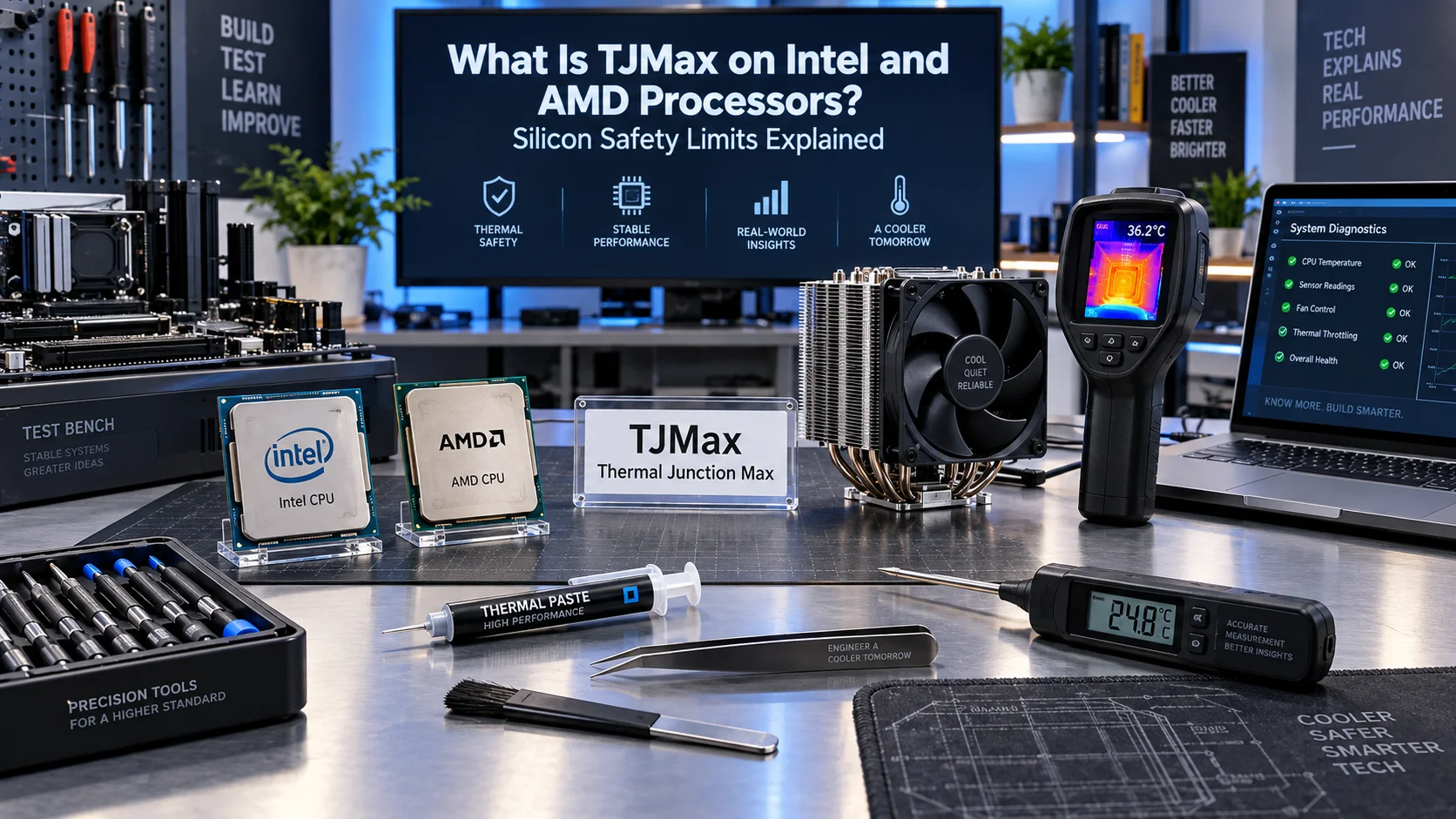
What Is TJMax on Intel and AMD Processors? Silicon Safety Limits Explained
Every CPU sold today ships with a hard thermal ceiling that the silicon must never breach under sustained load. That ceiling is TJMax (Thermal Junction Maximum), the absolute hottest temperature the processor die is rated to survive without risking permanent degradation, electrical migration, or outright failure. For PC builders, overclockers, and anyone troubleshooting random shutdowns or performance throttling, understanding TJMax is the difference between a stable system and a silently dying chip. This guide breaks down exactly what TJMax means, how Intel and AMD define it differently, and how to read your processor’s thermal behavior like an engineer.
Quick Answer
TJMax is the maximum safe junction temperature of a CPU die, typically 100°C for modern Intel and 95°C for AMD Ryzen processors. It is the thermal trip point where the chip throttles or shuts down to prevent silicon damage. Operating below TJMax is safe; sustained operation at or above it accelerates long-term degradation.
Defining TJMax: The Thermal Junction Maximum Explained
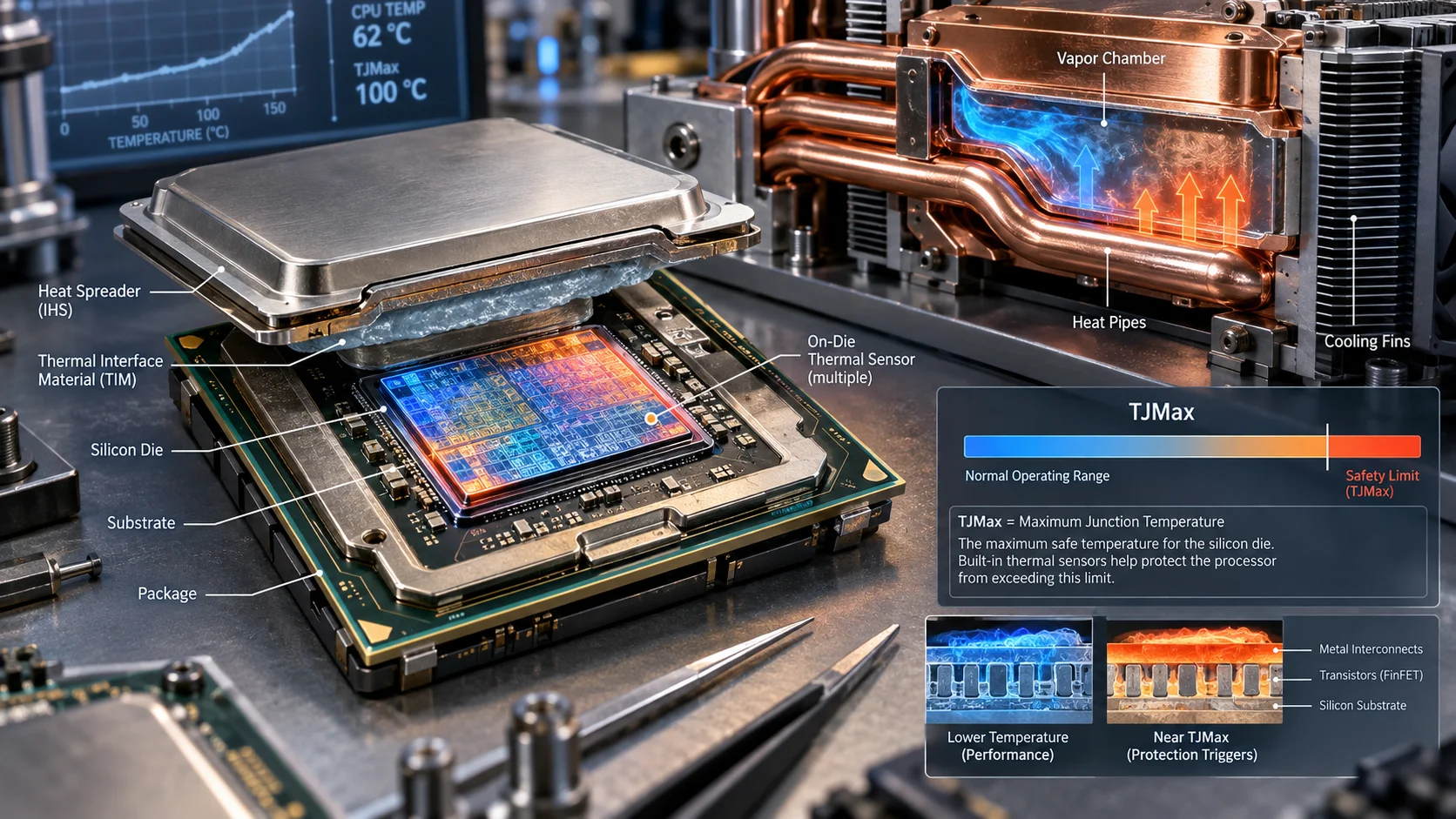
TJMax, formally called Thermal Junction Maximum, is the highest temperature that the CPU’s junction (the hottest point on the die, usually measured at the hottest core) is certified to reach while remaining within its electrical and reliability specifications. It is not a recommended operating temperature — it is a hard safety limit. The processor’s internal thermal management logic continuously monitors the die temperature through on-die digital thermal sensors (DTS) and compares it against the TJMax value stored in the chip’s firmware.
When a core approaches TJMax, the CPU initiates a two-stage protective response. First, it begins throttling — reducing clock frequency and core voltage to shed heat. If temperatures continue climbing despite throttling, the processor triggers an emergency thermal shutdown to protect the silicon from irreversible damage. This is why a poorly cooled CPU rarely dies instantly; it simply runs slower and slower before finally cutting power.
The Difference Between TJMax and TCase
Hardware enthusiasts frequently confuse TJMax with TCase (Case Temperature), but the two measure entirely different physical points. TJMax is measured at the die junction — the hottest internal point of the silicon. TCase is measured at the top of the integrated heat spreader (IHS), the metal lid covering the die. Because heat must travel from the die through the thermal interface material and into the IHS, TCase is always significantly lower than TJMax. A processor with a 100°C TJMax might have a TCase rating of only 70–80°C. When you read motherboard monitoring software, the CPU package temperature you see is an approximation of the die temperature, which is what matters for TJMax compliance.
Intel TJMax Specifications: 100°C Is the Modern Standard
Intel has standardized its TJMax at 100°C across nearly all modern desktop and laptop processors. This applies to the 12th, 13th, and 14th Generation Core processors (Alder Lake, Raptor Lake, and Raptor Lake Refresh), as well as the Core Ultra 200S series. The 100°C figure is not arbitrary — it reflects the thermal budget of the silicon process and the reliability targets Intel guarantees for a typical product lifetime.
Intel’s thermal management is aggressive. On Raptor Lake and Core Ultra chips, the processor will begin reducing boost clocks well before it reaches 100°C, depending on the power limits configured in the BIOS. On many unlocked “K” series processors, the default behavior allows the CPU to boost until it hits the thermal limit, then pull back. This is why a stock Intel chip under a heavy all-core workload often sits right at 95–100°C — it is thermally limited by design, not malfunctioning.
Intel’s TJMax Variations Across Generations
While 100°C dominates modern Intel silicon, historical and specialized parts differ. Older Intel processors used 105°C TJMax values, and some low-power mobile chips have been rated as high as 110°C. The Core Ultra 200S series introduced a more conservative power envelope, but the thermal ceiling remains 100°C. If you are checking a specific Intel part, the TJMax value is encoded in the processor’s thermal specification and can be read via tools like HWiNFO64, which displays the TJMax reported by the chip itself.
AMD TJMax Specifications: 95°C Across the Ryzen Lineup
AMD’s modern Ryzen processors use a 95°C TJMax as the standard thermal ceiling for mainstream desktop parts. This applies to the Ryzen 7000 (Zen 4) and Ryzen 9000 (Zen 5) series. The 95°C figure is slightly lower than Intel’s 100°C, reflecting differences in silicon design, power density, and AMD’s thermal management philosophy.
AMD’s approach to thermal management is notably different from Intel’s. Ryzen processors use a precision boost algorithm that aggressively pushes clocks toward the thermal limit under load, then dynamically adjusts. It is entirely normal for a Ryzen 7000 or 9000 chip to reach 95°C during a heavy all-core workload like Cinebench or a video render, even with a high-end air cooler or AIO liquid cooler. This behavior is by design — AMD engineers the boost algorithm to extract maximum performance up to the thermal ceiling.
However, not all AMD processors share the 95°C ceiling. The Ryzen 5000 series (Zen 3) and earlier parts used a 90°C TJMax. The Ryzen 9 7950X and 9950X, being flagship 16-core parts, still run at 95°C, while some APU and mobile variants use different values. Always verify the specific TJMax for your exact model rather than assuming a universal figure.
Why AMD Runs Hotter by Design
AMD’s decision to allow Ryzen chips to run at 95°C is a deliberate engineering trade-off. By permitting higher sustained temperatures, AMD can push higher boost clocks and extract more performance from the same silicon. The 5nm and 4nm processes used for Zen 4 and Zen 5 have high power density concentrated in a small die area, which naturally produces higher temperatures for a given power draw. The 95°C ceiling is the point where AMD’s reliability engineers determined the silicon remains safe for the full product lifetime.
This is why comparing an AMD chip running at 95°C to an Intel chip running at 95°C is misleading — the two platforms have different thermal budgets and different boost strategies. For a direct performance comparison across the two architectures, review our detailed AMD Ryzen 5 9600X vs Intel Core Ultra 5 245K analysis, which examines real-world thermals and boost behavior side by side.
How TJMax Affects Performance: Throttling and Boost Behavior
Understanding TJMax is essential for diagnosing why a CPU is not delivering its rated performance. When a processor hits its thermal ceiling, it begins to reduce clock speeds to protect itself. This thermal throttling directly impacts benchmarks, gaming frame rates, and rendering times. A chip that throttles is a chip that is not performing at its full potential.
The Throttling Cascade
Modern processors use a multi-step throttling cascade. As the die temperature approaches TJMax, the CPU first reduces the boost clock multiplier, dropping the frequency by 100–300 MHz. If temperatures continue to rise, the processor reduces core voltage, which lowers power draw and heat generation but also reduces performance. In extreme cases, the CPU may disable boost entirely and run at base clock, or trigger a full shutdown.
This cascade is why monitoring software shows temperature spikes followed by clock frequency drops. If you see your CPU oscillating between 95°C and 100°C while the clock speed fluctuates, you are observing thermal throttling in action. The fix is almost always better cooling — a larger cooler, better case airflow, or a lower ambient temperature.
Overclocking and TJMax
Overclockers push CPUs beyond stock specifications, which raises both power draw and temperature. When overclocking, TJMax becomes a critical constraint. Pushing an Intel chip beyond 100°C or an AMD chip beyond 95°C risks accelerated electromigration — the gradual displacement of metal atoms in the silicon’s interconnects caused by high current and temperature. Electromigration is cumulative and irreversible, eventually causing the chip to fail or become unstable.
For safe overclocking, most enthusiasts target a sustained load temperature of 80–90°C, leaving a comfortable margin below TJMax. This headroom ensures that transient temperature spikes during heavy loads do not push the chip to its limit. If your overclocked system crashes under load, the first thing to check is whether temperatures are spiking to TJMax and triggering protection mechanisms.
Reading TJMax Values: Tools and Diagnostic Methods
You cannot rely on the motherboard BIOS or generic monitoring software alone to know your CPU’s exact TJMax. The most reliable method is to read the value directly from the processor using a tool that queries the chip’s internal registers. HWiNFO64 is the industry-standard tool for this purpose, displaying the TJMax value for each sensor group alongside live temperatures.
Other useful tools include Core Temp, which shows the distance to TJMax (often labeled as “distance to TjMax”), and Ryzen Master for AMD platforms, which displays thermal margins. The “distance to TJMax” reading is particularly useful — it tells you how many degrees of thermal headroom remain before throttling begins. A distance of 0°C means the CPU is at its thermal ceiling.
Diagnostic Symptom Matrix
The table below summarizes the most common thermal symptoms, their likely causes, and the recommended diagnostic action. Use it as a quick reference when troubleshooting a hot or unstable system.
| Symptom | Likely Cause | Diagnostic Action |
|---|---|---|
| CPU sits at TJMax under light load | Failed pump, dry thermal paste, or poor cooler mount | Reapply thermal paste, reseat cooler, verify pump RPM |
| Random shutdowns during gaming | Thermal trip triggered at TJMax | Check event logs, monitor temps, improve case airflow |
| Clock speeds drop under sustained load | Thermal throttling near TJMax | Verify cooler capacity, check ambient temperature |
| Idle temperature above 60°C | Dried thermal paste or dust-clogged heatsink | Clean heatsink, reapply paste, check mounting pressure |
| Benchmark scores below expectations | Sustained throttling at TJMax | Run HWiNFO log, compare boost clocks to spec |
Safe Operating Temperatures and Practical Cooling Targets
Knowing TJMax is only half the battle — you also need to know what temperatures are actually healthy for long-term reliability. TJMax is the ceiling, not the target. Running a CPU at 95–100°C continuously, even within spec, shortens the silicon’s effective lifespan and increases the risk of degradation over years of use.
Recommended Temperature Ranges
For modern Intel and AMD processors, the following ranges represent best practice for a well-cooled system:
- Idle (desktop, light browsing): 30–45°C. Anything above 55°C at idle suggests a cooling problem.
- Light load (web, office, streaming): 40–60°C.
- Heavy load (gaming, rendering, all-core workloads): 65–85°C is ideal. Reaching 90–95°C is acceptable but not ideal.
- At or above TJMax: 95–100°C (AMD) or 100°C (Intel) indicates throttling and a cooling deficiency.
If your CPU regularly touches TJMax during normal workloads, your cooling solution is inadequate for the processor’s power draw. This is common with stock coolers on high-TDP chips, or with small form factor builds that lack airflow. Upgrading to a larger tower cooler or a 240mm+ AIO liquid cooler typically drops temperatures by 10–20°C, restoring full boost performance.
Ambient Temperature and Case Airflow
Your room’s ambient temperature directly affects CPU temperatures. A system running in a 25°C room will run hotter than the same system in a 20°C room. Case airflow matters just as much as the CPU cooler itself — a high-end cooler is useless if the case cannot exhaust hot air. Ensure your case has balanced intake and exhaust fans, and avoid placing the PC in an enclosed cabinet or against a wall where heat accumulates.
For GPU-adjacent thermal considerations, our Radeon RX 9060 XT 8GB vs 16GB comparison covers how graphics card thermals interact with overall system heat, and our graphics card tests & GPU guides section provides deeper thermal analysis for GPU-heavy builds.
Intel vs AMD Thermal Management: A Practical Comparison
The fundamental difference between Intel and AMD thermal behavior comes down to boost strategy. Intel’s modern chips are power-limited first and thermally limited second — they will boost until they hit their power budget, then pull back. AMD’s Ryzen chips are thermally limited first — they boost until they hit 95°C, then adjust. This means an AMD chip under load will often sit right at its TJMax while an Intel chip may hover below its 100°C ceiling depending on power limits.
Neither approach is “wrong,” but they require different expectations. If you are used to seeing an Intel chip at 75°C under load and switch to AMD, seeing 95°C might be alarming — but it is normal and safe. Conversely, an AMD user switching to Intel might be surprised by high temperatures on unlocked chips that are designed to run hot.
For a deeper look at how these platforms behave under identical workloads and cooling, our ASUS ROG Maximus Z890 Hero vs MSI MEG Z890 ACE comparison examines the motherboard-level power delivery and thermal management that governs Intel Core Ultra platforms.
Final Diagnostic Verdict & Maintenance Checklist
TJMax is a safety ceiling, not a performance target. A healthy CPU should never spend sustained time at its TJMax value — doing so means the cooling solution is inadequate for the workload. The single most important takeaway is this: if your processor is hitting TJMax and throttling, you are leaving performance on the table and slowly stressing the silicon. Fix the cooling, not the software.
Use this maintenance checklist to keep your processor safely below TJMax and running at full performance:
- Verify your exact TJMax using HWiNFO64 or Core Temp — do not assume a universal value across generations.
- Monitor temperatures under a real load (Cinebench, Prime95, or a demanding game) and log the peak values.
- Confirm your cooler is adequate for your CPU’s TDP — stock coolers are insufficient for high-TDP chips.
- Reapply thermal paste every 2–3 years or whenever you remove the cooler; dried paste is a leading cause of rising temperatures.
- Clean dust from heatsinks and fans every 6–12 months; dust accumulation silently degrades cooling performance.
- Verify case airflow — ensure intake and exhaust fans are balanced and unobstructed.
- Check ambient temperature — a hot room means a hot CPU; account for seasonal changes.
- If overclocking, keep sustained load temps below 85°C to preserve long-term silicon health.
For ongoing hardware research and thermal testing across the latest platforms, bookmark our desktop CPU benchmarks & reviews section, and reference Intel Architecture Technical Documentation for official thermal specifications. A properly cooled CPU running 15–20°C below TJMax will deliver its full rated performance for years — and that is the real goal of understanding what TJMax means.