What Is GPU Coil Whine and Why Does It Happen?
GPU coil whine is a high-frequency electrical noise — typically a buzzing, hissing, or squealing sound in the 1 kHz to 20 kHz range — produced when current flows through the inductors (coils) and capacitors on a graphics card’s voltage regulator module (VRM). As the GPU’s power draw fluctuates under load, the magnetic field around each coil expands and contracts at the switching frequency of the VRM, physically vibrating the coil windings against their ferrite cores. That mechanical vibration is transmitted through the PCB and into the case, where it reaches your ears as an audible whine.
This is not a defect in the traditional sense. Every GPU with a switching regulator produces some degree of coil vibration; the question is whether the amplitude crosses the threshold of audibility in your specific chassis, at your typical frame rate, and against your ambient noise floor. Understanding the physics — and the handful of variables that push a card from silent to squealing — is the first step toward a reliable gpu coil whine fix rather than a lucky workaround.
Quick Answer
GPU coil whine is audible vibration from VRM inductors under fluctuating electrical load. The most reliable fixes are capping your frame rate, enabling V-Sync or VRR, and undervolting or lowering the power limit. If noise persists, check the PSU, isolate the case, or RMA the card. It is not a hardware failure.
Because the noise scales directly with current ripple and switching frequency, the single most effective lever is reducing the GPU’s instantaneous load spikes. That is why the most dependable gpu coil whine fix guide advice always begins with frame-rate management rather than hardware replacement — you are attacking the root cause, not the symptom.
The Electrical Physics Behind the Whine
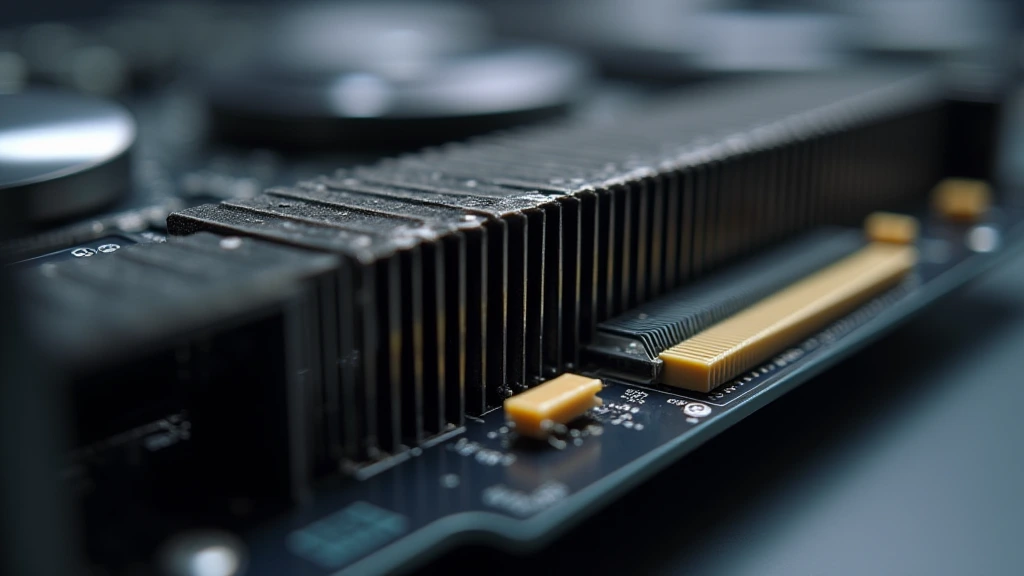
Modern GPUs step down the 12 V rail from your power supply to the 0.8–1.1 V core voltage using a multi-phase buck converter. Each phase contains an inductor that stores and releases energy in a rapid on/off cycle, typically switching at 300 kHz to 1 MHz. The magnetic field generated around that inductor is proportional to the current flowing through it, and when that current changes rapidly — as it does when your GPU renders a frame with wildly varying scene complexity — the field strength oscillates.
Why Load Fluctuation Matters More Than Average Load
Coil whine is rarely constant. It tends to appear or intensify at high frame rates, during menu screens, in loading screens, and in games with uneven scene complexity. The common thread is rapid, large-amplitude current swings. When a GPU renders 300 FPS in a simple scene and then spikes to 400 FPS for a single frame, the VRM must respond to a near-instantaneous change in demand. That transient forces the inductors to vibrate harder and at a frequency your ears can detect.
This explains a counterintuitive observation: a card can be silent at 60 FPS and obnoxious at 200 FPS, even though the average power draw is similar. The whine tracks the rate of change of current, not the steady-state value. It also explains why uncapped frame rates are the single worst offender — every frame boundary is a load transient.
Component-Level Contributors
Three components on the card can resonate: the VRM inductors (the dominant source), the ceramic capacitors on the core power plane, and, in rare cases, the fan motor itself. Inductor whine is the most common because the coil windings are physically free to move against the core. The specific resonant frequency depends on the inductor’s inductance, the PCB’s mechanical stiffness, and the switching frequency — which is why two identical cards from the same batch can sound completely different. Manufacturing tolerance alone can shift the audible signature.
Your power supply also matters. A PSU with high output ripple or a poorly regulated 12 V rail can inject additional noise into the VRM input, amplifying the coil vibration. This is why swapping power supplies sometimes resolves or reduces whine even when the original PSU was “working fine.”
Step-by-Step Software Fixes (Try These First)
Software fixes are free, reversible, and address the root cause. Work through these in order before touching hardware.
1. Cap Your Frame Rate
Set a frame-rate cap slightly above your monitor’s refresh rate — or at a value your GPU can hold consistently without spiking. In NVIDIA’s control panel, use the “Max Frame Rate” option; in AMD Adrenalin, use “Frame Rate Target Control.” A cap of 141 FPS on a 144 Hz display, or 117 FPS on a 120 Hz display, eliminates the load transients that drive the whine while keeping gameplay smooth. This is the highest-impact, lowest-effort gpu coil whine fix available.
2. Enable V-Sync or VRR
Vertical sync locks the GPU’s output to the display’s refresh cycle, which smooths the load profile and removes the frame-boundary spikes. Variable refresh rate (G-Sync or FreeSync) is even better: it holds the GPU at a steady, moderate load while the monitor adapts to it. Both approaches reduce the current ripple that feeds the coils. For competitive titles where input latency matters, pair VRR with a frame cap set a few FPS below the refresh ceiling.
3. Undervolt the GPU
Undervolting reduces the core voltage while holding the same clock speed, which cuts both power draw and the amplitude of current swings. In MSI Afterburner, lower the core voltage offset in small increments (10–25 mV) and stress-test for stability. A stable undervolt of 50–100 mV can meaningfully reduce coil vibration without any performance loss. Because the noise scales with current, reducing voltage at the same frequency directly shrinks the vibration source.
4. Lower the Power Limit
If undervolting feels risky, simply drop the power limit to 80–90% in Afterburner or your card’s utility. This reduces the maximum current the VRM must deliver, which caps the worst-case vibration amplitude. The trade-off is a small performance hit — typically 2–5% — which is often imperceptible at high frame rates and completely acceptable for the noise reduction gained.
Hardware Fixes and Isolation Techniques
If software tweaks reduce but do not eliminate the whine, move to hardware-level mitigation.
Power Supply Replacement
As noted, PSU ripple directly feeds the VRM. A high-quality unit with tight 12 V regulation and low ripple — look for a reputable brand with a strong ripple specification on the 12 V rail — can reduce coil whine that originates from a noisy input rail. If your current PSU is older, underpowered, or from an unknown brand, replacing it is a legitimate fix rather than a shot in the dark. Verify your card’s transient power spikes are within the PSU’s capability before upgrading.
Case Isolation and Acoustic Damping
Coil whine is transmitted through the PCB into the PCIe slot and the case frame, which acts as a resonance chamber. Decoupling the card from the case can help. Options include:
- Using a GPU support bracket that holds the card rigidly and reduces PCB flex.
- Adding acoustic foam or damping material to the side panel and case floor.
- Repositioning the card in a different PCIe slot (if your board and case allow it) to change the mechanical resonance path.
- Placing the case further from your seating position or on a solid, non-resonant surface.
These measures do not eliminate the source, but they can drop the perceived volume below your noise floor. A silent case with good damping panels is a practical, permanent mitigation for cards with mild whine.
Headphones as a Last-Resort Workaround
Wearing headphones — or switching from open-back to closed-back models — masks the noise entirely. This is a valid solution for many gamers, but it does not fix the underlying vibration. Treat it as a stopgap while you pursue the software and hardware fixes above, not as the primary answer.
Diagnostic Symptom Matrix
Use the table below to match your symptom to the most likely cause and the correct fix. This is the fastest path to a targeted gpu coil whine fix guide outcome rather than trial-and-error.
| Symptom | Likely Cause | Primary Fix | Secondary Fix |
|---|---|---|---|
| Whine only at high FPS (200+) | Load transients from uncapped frame rate | Cap FPS near refresh rate | Enable VRR or V-Sync |
| Whine in menus / loading screens | Extreme frame spikes on light scenes | Frame-rate cap | Lower power limit to 85% |
| Whine at all loads, including idle | PSU ripple or defective VRM | Replace PSU with low-ripple unit | RMA the card |
| Whine louder after overclocking | Increased current from higher clocks | Disable overclock / revert to stock | Undervolt at stock clocks |
| Whine changes pitch with fan speed | Fan motor resonance (rare) | Custom fan curve | RMA if persistent |
| Whine audible only with side panel off | Normal vibration, no acoustic isolation | Add case damping / close panel | Move case away from seating |
When to RMA or Replace the Card
Coil whine is almost never a reason to return a card — most manufacturers explicitly exclude it from warranty coverage because it is not a functional defect. However, there are legitimate cases where replacement is justified:
- The whine is extremely loud (audible over game audio at normal volume) and persists at low frame rates.
- The whine is accompanied by instability, artifacts, or crashes — which indicates a real VRM problem.
- The whine is present at idle with no GPU load, suggesting a defective component rather than normal operation.
If you decide to RMA, contact the manufacturer directly and describe the symptom precisely. Some vendors will replace a card with severe whine as a goodwill gesture, but expect pushback. A more reliable path for mild cases is to sell the card and purchase a different model — coil whine varies significantly between board designs, and a different card from a different vendor may be silent.
Before replacing, confirm your expectations are realistic. Every switching GPU produces some coil vibration; the goal is to get it below your noise floor, not to achieve absolute silence. If you have tried frame caps, VRR, undervolting, and PSU replacement with no improvement, a different card is the honest answer.
Final Diagnostic Verdict & Maintenance Checklist
GPU coil whine is a mechanical resonance artifact of normal VRM operation, not a hardware failure. The most effective gpu coil whine fix is to eliminate the load transients that drive it: cap your frame rate, enable VRR or V-Sync, and undervolt or lower the power limit. These three software changes resolve the majority of cases with zero cost and zero performance loss. Hardware fixes — PSU replacement, case isolation, and acoustic damping — address the remaining cases, and RMA or replacement is reserved for genuinely defective cards.
Work through this checklist in order to reach a definitive resolution:
- Cap FPS to just below your monitor’s refresh rate and confirm the whine drops.
- Enable VRR (G-Sync/FreeSync) or V-Sync and re-test under load.
- Undervolt 50–100 mV at stock clocks; stress-test for stability.
- If noise persists, lower the power limit to 80–90%.
- Verify the PSU is high-quality with low 12 V ripple; replace if suspect.
- Add case damping, a GPU support bracket, or reposition the card.
- Only then consider RMA or a different card model.
For broader context on how your GPU interacts with your platform, review our AMD Ryzen 5 9600X vs Intel Core Ultra 5 245K comparison and the ASUS ROG Maximus Z890 Hero vs MSI MEG Z890 ACE breakdown — both cover power delivery and VRM behavior that influence coil noise. If you are choosing a card, the Radeon RX 9060 XT 8GB vs 16GB comparison shows how VRM design differs across SKUs. For CPU-side load behavior that affects GPU power draw, see our desktop CPU benchmarks & reviews, and for more GPU-specific guidance, browse our graphics card tests & GPU guides. For official power-delivery and VRM specifications, consult the NVIDIA GeForce Hardware Documentation.
The bottom line for 2026: coil whine is manageable, not incurable. Start with software, escalate to hardware, and reserve replacement for genuine defects. With the right sequence of fixes, you can bring the noise below your threshold and get back to focusing on the game.