Quick Answer
Open System Properties u2192 Advanced u2192 Performance Settings u2192 Advanced u2192 Virtual Memory u2192 Change. Uncheck Automatically manage paging file size for all drives, select your drive, choose Custom size, enter Initial and Maximum values in MB, click Set, then OK and reboot. Recommended size: 1.5u00d7 to 3u00d7 installed RAM.
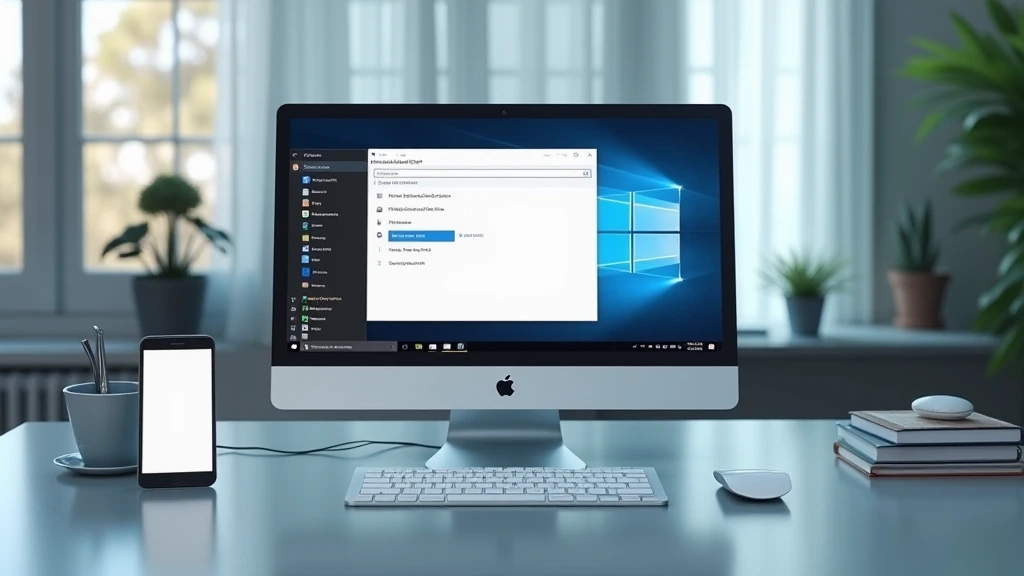
Virtual memory — the pagefile.sys hidden system file on your Windows 11 drive — is not optional infrastructure. It is a core component of the Windows memory manager, used to extend the effective address space available to processes, store modified memory pages that have been evicted from DRAM, hold kernel crash dump data, and buffer memory-mapped I/O. When Windows manages pagefile size automatically, it applies a conservative heuristic that suits average workloads but actively harms high-RAM-pressure scenarios: creative professionals rendering in After Effects, engineers running multi-VM lab environments, and gamers running memory-hungry titles alongside streaming software. Knowing exactly how to set pagefile size Windows 11 — with precise MB values matched to your hardware configuration — is the difference between a system that sustains peak throughput and one that throws low memory warnings or crashes with SYSTEM_PTE_MISUSE stop codes at the worst possible moment. This set pagefile size Windows 11 guide covers the complete procedure, the engineering rationale behind each sizing decision, and the diagnostic matrix every hardware-aware user needs in 2026.
What the Windows 11 Pagefile Actually Does (Hardware-Level View)
The Windows memory manager operates a two-tier storage hierarchy. Tier 1 is physical DRAM — fast, volatile, finite. Tier 2 is the pagefile on your storage device. When the Working Set Trimmer determines that a memory page is cold (not recently accessed), it writes that page to the pagefile and reclaims the DRAM frame for a hotter allocation. When the evicted page is needed again, a hard page fault fires, the memory manager reads the page back from storage, and execution resumes. On a modern NVMe SSD with sequential read speeds exceeding 7,000 MB/s, this round-trip is measured in microseconds — tolerable. On a spinning HDD, the same operation can consume 8–15 milliseconds, which is why pagefile placement matters as much as pagefile size.
Beyond paging, pagefile.sys serves as the backing store for complete and kernel memory crash dumps. If your system encounters a critical stop error (BSOD) and the pagefile is too small or absent, Windows cannot write the dump file that engineers — and tools like WinDbg — need to diagnose the fault. This alone justifies keeping a pagefile even on systems equipped with 64 GB or more of DRAM. For users evaluating platform choices — whether the AMD Ryzen 5 9600X vs Intel Core Ultra 5 245K represents your next build — memory subsystem behavior at the OS level is an equally important variable alongside raw IPC figures.
Pagefile vs. ReadyBoost vs. StoreDiag — Knowing the Difference
ReadyBoost is a superfetch-based flash cache that pre-fetches application launch data onto a USB drive. It does not extend the address space and does not participate in page eviction. The pagefile is the only mechanism Windows uses to back anonymous private allocations that overflow DRAM. StoreDiag is a diagnostic utility, not a memory extension. Conflating these three leads to misconfiguration. Focus exclusively on pagefile.sys when the goal is addressing RAM pressure or crash dump capture.
How to Set Custom Virtual Memory (Pagefile) Size in Windows 11 — Step-by-Step
The procedure below applies to Windows 11 versions 22H2, 23H2, and 24H2 (2026 feature update). Administrator privileges are required. The change takes effect only after a full system restart — not a fast-startup shutdown.
- Press Win + R, type sysdm.cpl, press Enter. This opens System Properties directly without navigating through Settings.
- Click the Advanced tab.
- Under the Performance section, click Settings.
- In the Performance Options dialog, click the Advanced tab.
- Under Virtual memory, click Changeu2026
- Uncheck Automatically manage paging file size for all drives at the top of the dialog. This unlocks all controls below.
- In the drive list, select the drive on which you want to place the pagefile. For NVMe primary drives this is typically C:; for dedicated pagefile drives, select the appropriate volume letter.
- Select Custom size.
- Enter your calculated Initial size (MB) and Maximum size (MB) values (see the sizing table in the next section).
- Click Set. This button is mandatory — clicking OK without clicking Set first discards the values.
- Click OK through all three open dialogs.
- Click Restart now when prompted, or restart manually before the next work session.
If you manage multiple machines or deploy via Group Policy, the equivalent PowerShell command is:
Set-ItemProperty -Path "HKLM:SYSTEMCurrentControlSetControlSession ManagerMemory Management" -Name "PagingFiles" -Value "C:pagefile.sys 4096 8192"
Replace the drive letter, initial size, and maximum size to match your target configuration. Reboot after execution. Automating this via a startup script is standard practice in enterprise imaging workflows and reduces configuration drift across a fleet — especially relevant when deploying identical hardware configurations on platforms like those reviewed in our ASUS ROG Maximus Z890 Hero vs MSI MEG Z890 ACE motherboard comparison, where memory controller behavior under load differs measurably between boards.
Setting Pagefile to No Paging File — When It Is and Is Not Safe
Selecting No paging file eliminates the backing store for evicted pages. On a system with 128 GB ECC DRAM running a single-purpose workload whose total working set is well below physical memory capacity, this is defensible. On any system with less than 64 GB RAM, or any system that must capture crash dumps for debugging, it is a misconfiguration. Windows will display a warning; heed it. The JEDEC Memory Standards Specification defines burst capacity and refresh behavior for DRAM modules, but it does not account for OS-level address space overhead — that gap is precisely what the pagefile bridges.
Pagefile Sizing Reference Table — RAM Configuration vs. Recommended Values
The figures below are derived from Microsoft’s historical guidance, empirical testing across workload categories, and the practical requirement to accommodate full kernel memory dumps. Initial size sets the pre-allocated reserved space on disk at boot; Maximum size caps growth. Setting both values identically eliminates runtime fragmentation caused by dynamic expansion — a best practice on SSDs where fragmentation is less destructive but consistent allocation is still preferable for predictable latency.
| Installed RAM | Workload Profile | Initial Size (MB) | Maximum Size (MB) | Notes |
|---|---|---|---|---|
| 8 GB | General / Light Gaming | 8192 | 16384 | High pagefile dependency; NVMe strongly recommended |
| 16 GB | Gaming / Content Browsing | 8192 | 16384 | Match initial = maximum to eliminate fragmentation |
| 16 GB | Video Editing / Streaming | 16384 | 24576 | Adobe Premiere & DaVinci Resolve spike memory hard |
| 32 GB | Heavy Multitasking / VMs | 16384 | 32768 | Hyper-V / WSL2 expand address space aggressively |
| 32 GB | 3D Rendering / CAD | 32768 | 49152 | Blender, SolidWorks scene complexity drives spikes |
| 64 GB | Workstation / Server | 16384 | 32768 | Dump capture primary justification; pagefile rarely stressed |
| 128 GB+ | Any | 8192 | 16384 | Minimum retained for crash dump; active paging negligible |
Drive Placement Strategy — Where to Put the Pagefile on Your System
Drive selection for pagefile placement directly affects the latency of hard page faults. The hierarchy from optimal to least optimal is: NVMe Gen 5 SSD u2192 NVMe Gen 4 SSD u2192 NVMe Gen 3 SSD u2192 SATA SSD u2192 HDD. If your system has multiple NVMe drives, place the pagefile on the fastest drive that is not the OS volume — this avoids I/O contention between the memory manager’s paging traffic and the file system’s OS read traffic during peak load.
Splitting the Pagefile Across Multiple Drives
Windows 11 supports multiple simultaneous pagefile instances across different drive letters. The memory manager distributes page writes across all active pagefiles in a round-robin fashion, which can increase aggregate paging throughput in multi-drive configurations. To configure this: in the Virtual Memory dialog, select each drive individually, set a Custom size for each, and click Set after each entry. Total capacity across all pagefiles should match the values in the sizing table above. This technique is most beneficial when running graphics card tests & GPU guides workloads that push both system RAM and VRAM simultaneously — scenarios where discrete GPU memory overflows back to system memory through PCIe BAR mechanisms.
Pagefile on HDD — The Performance Cost Quantified
A 7200 RPM HDD delivers roughly 120–180 MB/s sequential throughput and 0.5–1 MB/s random 4K throughput. A Gen 4 NVMe SSD delivers 4,000–7,000 MB/s sequential and 40–80 MB/s random 4K. A hard page fault that triggers a 4K random read takes approximately 10–12 ms on HDD vs. under 0.1 ms on NVMe. Under memory pressure with hundreds of faults per second, the HDD creates a full system stall perceptible as UI freezing and application stuttering. If the only available drive is a HDD, reduce the maximum pagefile size to minimize paging frequency and instead prioritize a DRAM upgrade as the primary remediation.
Diagnosing Pagefile Problems — Symptom-to-Cause Matrix
Misconfigured pagefile settings produce specific, identifiable symptoms. The table above covers sizing; this section maps observable failures to their root cause. Use Resource Monitor (resmon.exe) u2192 Memory tab u2192 Hard Faults/sec column for live paging activity. Values above 10 hard faults/second under normal desktop use indicate active DRAM pressure and pagefile dependency. Values above 100/sec signal a severe RAM deficit.
- BSOD: SYSTEM_PTE_MISUSE or PAGE_FAULT_IN_NONPAGED_AREA — Pagefile too small or corrupted; pagefile.sys may reside on a failing drive. Run
chkdsk C: /f /rand verify pagefile size is at minimum equal to installed RAM. - “Your computer is low on memory” balloon notification — Pagefile maximum is set below the system’s peak commit charge. Increase maximum size or add DRAM.
- Application crash with “Out of memory” dialog — Commit limit (RAM + pagefile) reached. Increase pagefile maximum; identify and terminate runaway memory consumers via Task Manager u2192 Details u2192 sort by Commit size.
- Crash dump incomplete or absent after BSOD — Pagefile absent or initial size smaller than installed RAM. Set initial size u2265 RAM capacity; ensure the pagefile resides on the volume specified under Startup and Recovery settings.
- System sluggishness with full DRAM (no low-memory warning) — Unrelated to pagefile; investigate CPU thermal throttling, storage queue depth saturation, or GPU VRAM exhaustion. Check our AMD Ryzen 5 9600X vs Intel Core Ultra 5 245K performance breakdowns and desktop CPU benchmarks & reviews to isolate CPU-side bottlenecks.
- Pagefile growing to maximum size repeatedly — Workload genuinely exceeds DRAM; increasing pagefile maximum is a temporary measure. The permanent fix is a RAM upgrade matched to the platform’s supported speed and capacity — consult the ASUS ROG Maximus Z890 Hero vs MSI MEG Z890 ACE memory slot and XMP support specifications for Z890-platform upgrade ceilings.
- High disk I/O on pagefile drive during GPU workloads — VRAM overflow forcing system RAM use, then system RAM overflow forcing pagefile use. Upgrade GPU VRAM capacity; see the Radeon RX 9060 XT 8GB vs 16GB comparison for a quantified analysis of how VRAM headroom eliminates this cascade entirely.
Advanced Configuration — Registry, PowerShell, and Group Policy
Disabling Pagefile Clear on Shutdown
By default, Windows does not clear the pagefile at shutdown — this is correct behavior for performance. Some security hardening guides recommend enabling ClearPageFileAtShutdown via HKLMSYSTEMCurrentControlSetControlSession ManagerMemory Management. Enabling this adds 30–120 seconds to shutdown time on large pagefiles and provides no practical security benefit on systems with full-disk encryption (BitLocker) already active. Leave it disabled on performance-optimized builds.
Monitoring Commit Charge in Real Time
Task Manager u2192 Performance u2192 Memory shows Committed as a fraction (e.g., 18.4/40.0 GB). The denominator is the total commit limit — RAM plus pagefile maximum combined. When committed approaches the limit, Windows begins aggressively trimming working sets. Keep committed below 70% of the commit limit under peak load to maintain headroom. If peak committed consistently exceeds 85%, expand the pagefile maximum or add DRAM. For GPU-compute workflows, also monitor VRAM utilization independently via nvidia-smi or the AMD equivalent — VRAM pressure and system RAM pressure interact through driver-level memory management that the Windows commit counter does not fully capture, a distinction that matters when selecting between GPU configurations covered in our graphics card tests & GPU guides.
Final Diagnostic Verdict & Maintenance Checklist
The Windows 11 pagefile is not a legacy workaround for insufficient RAM — it is an active, necessary component of the OS memory architecture in 2026 regardless of how much DRAM a system carries. Correct sizing prevents commit exhaustion, enables crash dump capture, and keeps hard fault latency within the tolerance of NVMe storage. The single most impactful decision after choosing correct MB values is drive placement: pagefile on NVMe, never on HDD if avoidable.
Use this checklist to validate and maintain your pagefile configuration on any Windows 11 build targeting the set-pagefile-size-windows-11 best-practice standard for pc hardware 2026:
- Verify automatic management is disabled — sysdm.cpl u2192 Advanced u2192 Performance Settings u2192 Advanced u2192 Virtual Memory u2192 Change. Confirm the checkbox is unchecked.
- Confirm Initial size equals Maximum size — Prevents runtime fragmentation and ensures pre-allocated contiguous space at boot.
- Check pagefile drive health quarterly — Run
Get-PhysicalDisk | Select-Object FriendlyName, OperationalStatus, HealthStatusin PowerShell. A pagefile on a degraded drive is a data-loss risk during page-out operations. - Monitor peak committed memory weekly — Task Manager u2192 Performance u2192 Memory u2192 Committed peak. Resize pagefile if peak exceeds 80% of commit limit.
- Validate crash dump path matches pagefile drive — sysdm.cpl u2192 Advanced u2192 Startup and Recovery u2192 Settings u2192 Write debugging information. The dump destination drive must host an active pagefile with initial size u2265 installed RAM for complete dumps.
- After any RAM upgrade, recalculate and reset pagefile values — Adding DRAM shifts the optimal pagefile range downward; the old values waste disk space but do not cause harm. Update immediately for accuracy.
- Reboot after every pagefile change — Fast Startup (hybrid shutdown) does not apply pagefile changes. Use Restart, not Shut down, to ensure the new values are loaded by the memory manager at POST.